Windows 10 End of Life: What Irish Small Businesses Should Do
Windows 10 support ended on 14 October 2025. Here is what that means for Irish small businesses, and how to upgrade, pay for ESU or replace PCs safely.

Windows 10 reached end of life on 14 October 2025. Since then, Microsoft has provided no technical support, software updates or security updates for most editions. Your PCs still start and run. They just no longer get new security fixes. If you still have Windows 10 machines in the business, the job is simple: find them, upgrade the ones that can move to Windows 11, and decide what to do with the rest. hostme.ie is one person to contact for that work, with the scope agreed before it starts.
Current prices for business laptops from Dell, HP, Lenovo and others are on the hostme.ie store, ex VAT and delivered in Ireland.
TL;DR
- Windows 10 support ended on 14 October 2025. PCs keep working but stop receiving standard security updates.
- Most PCs bought from 2020 onwards can move to Windows 11 for free. Check each one in Windows Update.
- Back up before you upgrade. Do not start an upgrade on a PC with the only copy of your files.
- PCs that cannot upgrade can be replaced, or covered for a limited time by Microsoft’s paid Extended Security Updates (ESU).
- Do the work in a sensible order, one PC at a time, with a list of what you own.
Table of Contents
- What end of life actually means
- Is it safe to keep running Windows 10?
- Step 1: List every Windows 10 PC you own
- Step 2: Check which PCs can move to Windows 11
- Step 3: Back up before you touch anything
- Step 4: Upgrade the ready PCs
- Step 5: Decide what to do with PCs that cannot upgrade
- Disposing of old PCs properly
- Things to sort out while you are at it
- Scope, cost and what a sensible engagement looks like
- Where hostme.ie fits
- Our view
- FAQ
- Sources
What end of life actually means
End of life, or end of support, is the date a product stops being maintained. For Windows 10 that date has passed. Microsoft’s lifecycle notice says it applies to Home, Pro, Enterprise, Education and the listed LTSB editions of version 22H2. LTSB is a long-term servicing edition that some specialist machines use.
Three things follow in practice:
- No standard security updates. New weaknesses found in Windows 10 are not fixed for ordinary users.
- No Microsoft technical support for Windows 10 itself.
- Software may stop working properly over time, as suppliers focus on newer systems. TechSoup Ireland makes the same point.
One detail often causes confusion. Microsoft 365 Apps (Word, Excel, Outlook) on Windows 10 lost standard support on the same date, but Microsoft continues to provide security updates for them until 10 October 2028. That helps the apps. It does not patch the operating system underneath them.
Is it safe to keep running Windows 10?
A Windows 10 PC does not stop working or lock you out. The risk is slower and quieter. Microsoft says these PCs are at greater risk from viruses and malware because security updates have stopped. Every month the gap between the PC and a current one grows.
For a business there is also a duty angle. The Data Protection Commission’s security guidance describes software patches as an important tool in preventing hacking or malware attacks and says organisations should have regular, consistent and comprehensive patch management in place. If your PCs hold customer names, invoices or staff records, an unpatched machine is hard to defend. A short read on what GDPR requires of organisations explains why security measures sit at the centre of the rules.
In plain terms: one forgotten Windows 10 laptop that connects to your email, your accounting package and your files is the weak point. That is why the first job is a full list.
Step 1: List every Windows 10 PC you own
You cannot fix what you have not counted. Walk through the business and write down, for each computer:
- Who uses it and what it is used for
- Make, model and roughly when it was bought
- Windows version (Start > Settings > System > About)
- Business software that only runs on that PC, such as accounting, till or design software
- Where its files are saved: local disk, OneDrive or a shared drive
Include the quiet ones: the back-office PC, the machine that runs the label printer, the laptop in the van. A sole trader may have two or three. A small office may have fifteen. Either way, one page is enough.
If the list shows PCs nobody can account for, or devices staff use at home, that is useful to know. It is also where a managed approach pays off. A short read on rolling out device management safely for a small business shows how a business can keep track of its machines.
Step 2: Check which PCs can move to Windows 11
Windows 11 has stricter hardware rules than Windows 10. Microsoft’s published specification asks for a compatible 64-bit processor with at least two cores, 4 GB of RAM, 64 GB of storage, UEFI firmware with Secure Boot, TPM 2.0 and DirectX 12 graphics. TPM 2.0 is a small security chip on the motherboard. Many older PCs lack it, or have it switched off.
You do not need to read chip lists. Microsoft’s own check is easier: on each PC go to Start > Settings > Update & Security > Windows Update and select Check for updates. Windows will say whether the PC is ready for the free Windows 11 upgrade and give instructions. Microsoft adds that if an IT administrator manages the PC, you should contact them first.
As a rule of thumb, the University of Galway advises that devices bought from 2020 onwards are generally compatible, while those bought before 2020 are unlikely to meet the requirements and should be scheduled for replacement. Treat that as a guide for sorting your list, then confirm each PC with the Windows Update check.
Sort your list into three groups:
| Group | What it means | What to do |
|---|---|---|
| Ready | Windows Update offers Windows 11 | Back up, then upgrade |
| Not ready, but new enough | Often a setting such as TPM or Secure Boot, or a driver | Have it looked at before you decide |
| Not eligible | Hardware does not meet the requirements | Replace, or cover with ESU for a limited time |
Step 3: Back up before you touch anything
An upgrade is usually smooth. Usually is not good enough for the only copy of your invoices. The University of Galway advises making sure all local data is backed up to OneDrive before starting, and notes the upgrade can take some time and involve a number of restarts.
Before each upgrade:
- Confirm Desktop and Documents files are saved to OneDrive or another backup, and open one file from the backup to see it is really there.
- Export anything stored only in a program: browser bookmarks, email archives, accounting data files.
- Write down licence keys and logins for software installed on that PC.
- Check that you know the Microsoft account or work account the PC signs in with.
- If the disk is encrypted with BitLocker, make sure the recovery key is stored somewhere safe first. Our guide to BitLocker recovery keys before a rollout explains why.
The PC’s files are only half the picture. If your email and shared files live in Microsoft 365, a separate cloud backup is worth having too. Our page on Microsoft 365 backup for small businesses covers that. hostme.ie also supports backup and recovery as part of its business IT work.
Step 4: Upgrade the ready PCs
For a PC that Windows Update says is ready:
- Plug in a laptop and close open work.
- Choose the Windows 11 upgrade in Windows Update and let it run. The University of Galway recommends taking the upgrade when Windows Update offers it.
- Expect several restarts. Do not switch the PC off partway through.
- Afterwards, sign in, open your main business programs, print a test page and check email and any shared drives.
- Run Windows Update again until it says there is nothing left.
Upgrade one PC first, ideally one that is not critical. If your accounting or industry software works there, do the rest. If something breaks, you have learned that on one machine, not fifteen.
Where things commonly go wrong: older printer or scanner drivers, specialist software from a supplier that has not confirmed Windows 11 support, and PCs that offer the upgrade but run slowly afterwards because they only just meet the minimum. A PC that barely meets the specification may be better replaced at the next opportunity than upgraded.
Step 5: Decide what to do with PCs that cannot upgrade
You have two sensible routes. They are not equal.
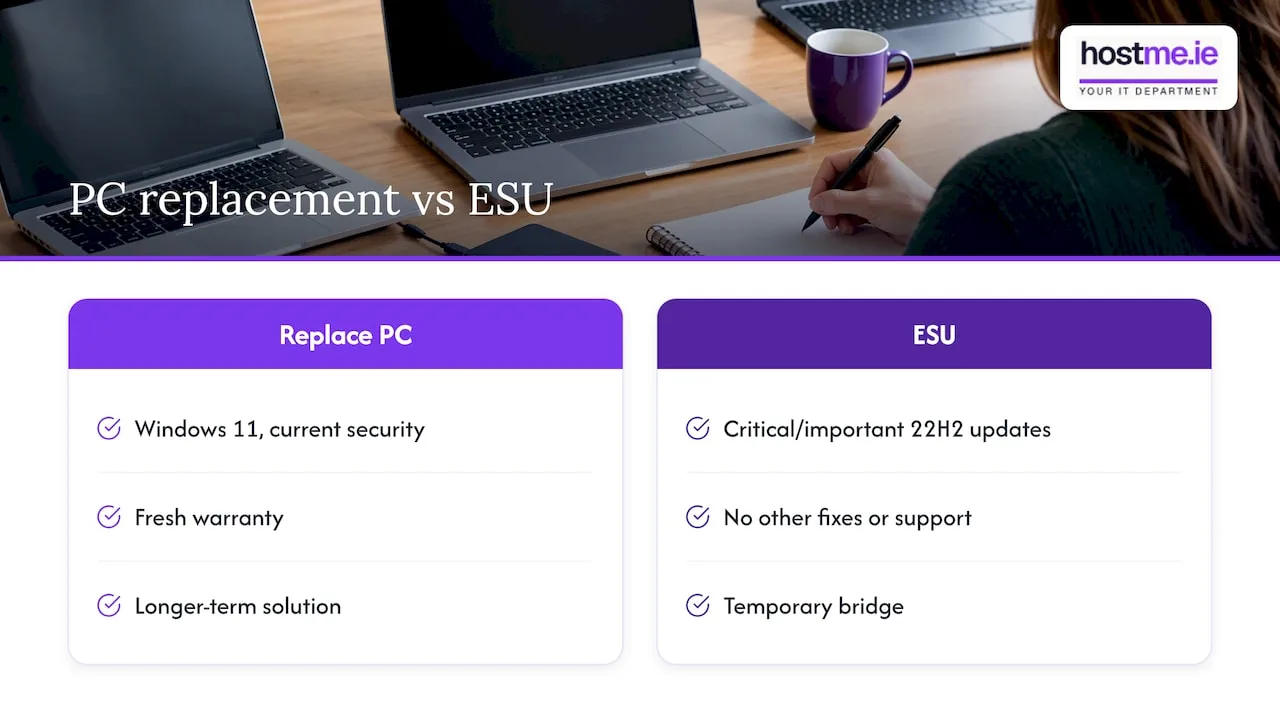
Replace the PC. For anything used daily for business, this is the clean answer. A new machine arrives with Windows 11, current security and a fresh warranty. Your files move across from OneDrive or the backup, and the old PC is wiped before disposal. Because a replacement is a planned purchase, you can spread it over a few months, starting with the PCs that handle the most sensitive data or sit furthest from your control.
Cover it with ESU for a limited time. Microsoft’s Extended Security Updates programme provides critical and important security updates for Windows 10 version 22H2, with enrolment available until 12 October 2027. It does not include other fixes, feature improvements or technical support, as the same page makes clear. It is a bridge, not a destination. It suits a PC that must keep running a particular program while you arrange its replacement. Check the current price and enrolment steps on Microsoft’s page before you commit, as they depend on the year and how you buy.
Whichever route you choose, put a date against each PC on your list. A plan with dates gets done. “We should sort those old PCs” does not.
Disposing of old PCs properly
Before a PC leaves the building, the data on it must be gone. Sign out of accounts, make sure your backup is complete, then have the drive properly wiped rather than simply deleted. If the PC was encrypted, keep the recovery key until the disk has been erased. Old business PCs are electrical waste, so use a proper recycling route rather than the bin.
Things to sort out while you are at it
An upgrade project is a good moment to tidy the basics, because every PC gets touched anyway:
- Passwords. Move staff to a shared business password manager so logins are not on sticky notes or in browsers.
- Account ownership. Check that you, not a former employee or supplier, own the business’s key accounts. Our account ownership checklist walks through it.
- The network edge. A business router or firewall that has never been checked is worth a look. See our small business firewall checklist.
- Email and Microsoft 365. If staff still use old email set-ups, this is the time to move them onto a properly configured business mailbox.
Scope, cost and what a sensible engagement looks like
For a sole trader with two PCs, a Windows 11 move can be a short, one-off job. For an office with mixed ages of machine, it is a small project: audit, backup check, upgrade the eligible PCs, advise on the rest. hostme.ie works either as ad-hoc help or as a separately scoped project, with scope, cost and contract terms agreed before work begins. Managed support is also available, and that has an initial 12-month term, so you would agree it in advance rather than discover it later. Support is remote, with on-site work where agreed.
We do not publish prices for this work, so we will not guess at one here. What we will say is that the cost depends on the number of PCs, how they are used and what needs to be moved, and that you will know the scope before anything starts.
Where hostme.ie fits
If you would rather not do this alone between customers, hostme.ie gives you one person to contact for practical business IT help: troubleshooting computers and office systems, Microsoft 365 and business email, backups and cloud support. That covers the whole move from Windows 10: the inventory, the backup check, the upgrades and the sorting of PCs that cannot move. If you are in Galway or Mayo, you can also see our local pages for IT support in Tuam and IT support in Claremorris.
The next step is one conversation about what you have. Start from our IT support page and tell us how many PCs you are dealing with.
Our view
Most small businesses we speak to do not have a Windows 10 problem. They have a visibility problem. Nobody has written down what is in the building, so nobody knows which machines are safe to leave and which are not.
That is why we start with a plain list, then a backup check, then the upgrades. It is a dull order, and it is the one that avoids lost files and wasted weekends.
We also think a Windows move is the cheapest moment to fix other things: who owns the accounts, where the files really live, whether the backup restores. Done together, it is one tidy job instead of four emergencies.
hostme.ie is one person to contact, which means the same person who audits your PCs knows what you run and why. We agree the scope with you first, so there are no surprises.
hostme.ie
FAQ
When did Windows 10 support end?
Windows 10 support ended on 14 October 2025. Microsoft’s notice covers Home, Pro, Enterprise, Education and the listed LTSB editions. After that date, standard security updates and technical support stopped for these editions.
Can I still use Windows 10 for my business?
The PC will still run, but it no longer receives standard security updates, so it is at greater risk from malware. If it holds customer or staff data, upgrade it or replace it. A short-term bridge is the paid ESU programme, available for enrolment until 12 October 2027.
Is the upgrade to Windows 11 free?
For eligible PCs, yes. Open Windows Update and select Check for updates, and Windows will say whether the PC is ready for the free upgrade. If the PC is not eligible, you will need to replace it or use ESU in the meantime.
Will my business software work on Windows 11?
Most mainstream business programs do, but check anything specialist, such as industry software or older printer drivers, before you upgrade everything. Trying the upgrade on one non-critical PC first shows you quickly. We can look at your list of software with you as part of the job.
What should I do first?
Write down every Windows 10 PC, who uses it and what runs on it. Then check each one in Windows Update and confirm its files are backed up. That one page tells you what to upgrade, what to replace and what to do first.
Sources
- Windows 10 support has ended on October 14, 2025, Microsoft Support
- Windows 10 reaching end of support, Microsoft Lifecycle
- Making the transition to a new era of computing, Microsoft Support
- Windows 10 Extended Security Updates, Microsoft Ireland
- Windows 11 specifications, Microsoft
- Data Security Guidance, Data Protection Commission
- Windows 10 End Of Life, University of Galway
- Microsoft Windows 10 Support Will End 14th October 2025, TechSoup Ireland
- GDPR Explained, Trustview