Secure Remote Access for Small Businesses: A Practical Guide
How to set up secure remote access for staff: choose the method, switch on MFA, protect devices, follow Irish guidance and use a simple checklist.
Secure remote access means your staff can reach business systems and data from outside the office, and only the right people, on devices you trust, can do it. For a small business the practical recipe is short: give each person their own login with multi-factor authentication (MFA), keep devices updated and protected, give people only the access they need, and remove access the day someone leaves. This guide shows you how, using Irish official guidance, and where hostme.ie can help.
TL;DR
- Remote access to your network is a potential weak point, so decide who really needs it before you switch it on. Irish government guidance says the need should be assessed first.
- Turn on MFA for every account that can reach business data. It is the single cheapest control you can add.
- Keep devices updated, locked and backed up, and avoid shared logins.
- Review access regularly and remove it quickly when someone leaves or changes role.
- Agree the scope before any work starts: that way you pay for what your business needs and nothing more.
Table of Contents
- What secure remote access actually means
- Step 1: Decide who needs access to what
- Step 2: Choose how people will connect
- Step 3: Switch on multi-factor authentication
- Step 4: Protect the devices
- Step 5: Secure the network and the place of work
- Step 6: Back up, because access can still go wrong
- Step 7: Train people and manage joiners and leavers
- Your Irish data protection duties
- A remote work security checklist you can copy
- Where to start if you have a mixed set-up
- Get help setting it up
- FAQ
- Sources
What secure remote access actually means
Remote access is any way of using your business systems away from your usual desk. That might be reading email on a phone, opening files in OneDrive or Google Drive from home, logging into a Dynamics 365 system on a laptop, or connecting to a computer in the office.
It becomes secure when three things are checked every time: who is connecting, what device they are using, and what they are allowed to reach. Cisco describes secure remote access as continuously verifying users, devices and connections rather than checking only at the first login. For a small firm, that translates into everyday habits: MFA, updated devices, limited permissions and someone who notices when something looks wrong.
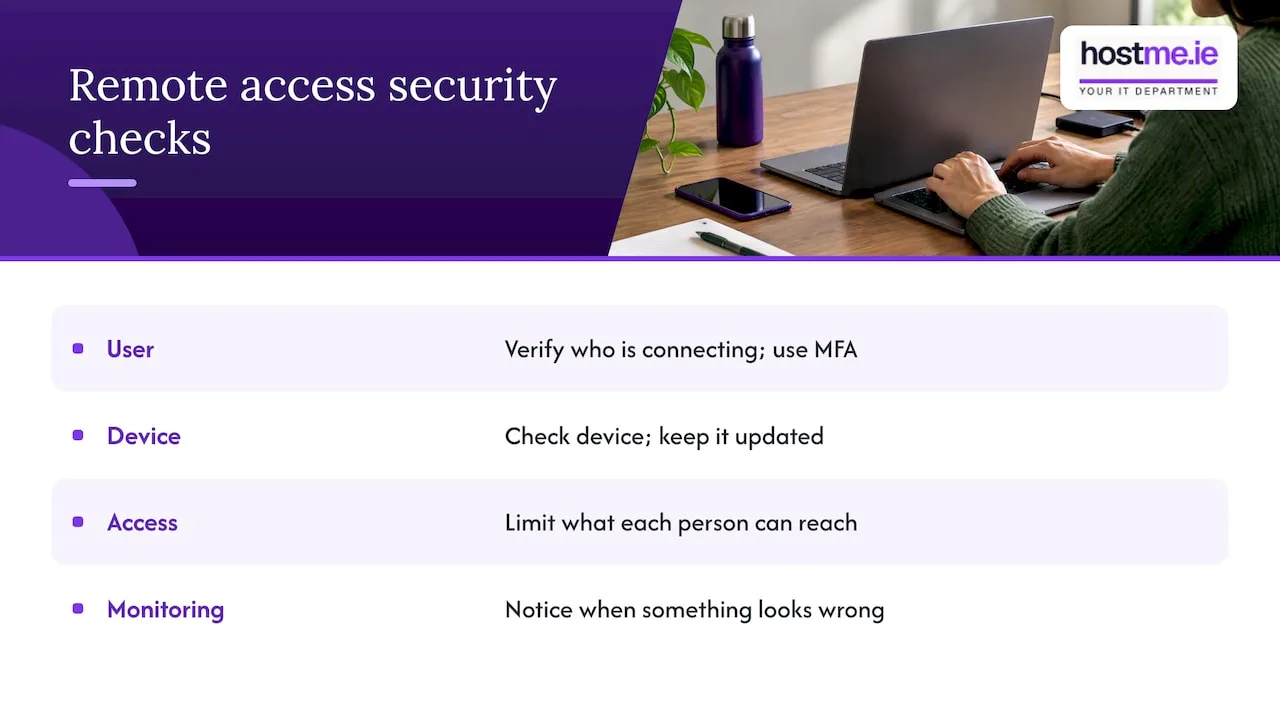
The Irish government’s guidance for working remotely is blunt about the starting point. Letting staff or contractors in from outside creates a potential system weakness, so the need for access should be assessed and security reassessed before it is granted. The same guidance lists phishing, vishing, remote access threats and business email compromise as the challenges for organisations working remotely.
That is a useful order of work. Decide, then secure, then switch on.
Step 1: Decide who needs access to what
Before choosing any tool, write a short list. It takes ten minutes and saves problems later.
- People: employees, part-timers, contractors, your accountant, your bookkeeper.
- Systems: email, file storage, accounting software, your CRM, line-of-business software, the office PC or server.
- Data: customer details, payroll, contracts, anything covered by GDPR.
- Devices: company laptops, personal phones, home computers.
Then match them. A part-time sales rep may need email and the CRM but not payroll. A contractor may need one shared folder, not your whole drive.
The Data Protection Commission’s security guidance says users should receive only the access needed for their duties, shared credentials should be prevented and access reviewed regularly. If three people share one login to the accounts package, fixing that is a better first job than buying anything new.
Step 2: Choose how people will connect
There is no single best method. The right one depends on where your data lives.
| Option | What it is | Best suited to | What to watch |
|---|---|---|---|
| Cloud apps with MFA | Staff sign in to Microsoft 365, Google Workspace or other web services from any device | Businesses whose files and email are already in the cloud | Strong sign-in rules, device updates, tidy permissions |
| VPN | An encrypted tunnel from the device to your office network | Businesses with files or software on an office server or PC | Keeping the VPN software updated, limiting who can use it |
| Remote desktop to an office computer | Staff control a computer in the office from home | Older software that only runs on one machine | Never leave it open to the whole internet; protect it with MFA and a VPN or gateway |
| Remote support tools | Used by an IT provider to fix a device | Troubleshooting and maintenance | Use only with permission, close the session afterwards |
For most sole traders and small firms in Galway and Mayo, the simplest and safest route is to move work into cloud services that already support MFA, then keep a VPN or remote desktop only for the one or two systems that cannot move. Fewer doors means fewer things to defend.
The Data Protection Commission also makes the point that you stay responsible for the method you pick. Its guidance says controllers must ensure the chosen remote-access method does not compromise security, and suggests limiting access to specific IP addresses where feasible and considering MFA.
What does it cost?
Cost depends on the method, the number of users and how much set-up is needed. Cloud sign-in controls are often part of the Microsoft 365 or Google Workspace plan you already pay for, while a VPN or remote desktop set-up adds licences or hardware and some configuration time. hostme.ie does not publish fixed prices for this work: we agree the scope and cost with you before anything starts, so you can see what you are paying for.
Step 3: Switch on multi-factor authentication
MFA asks for a second proof of identity, usually a prompt on a phone, as well as the password. The National Cyber Security Centre’s small business guidance cites Microsoft’s claim that MFA can prevent 99.9 per cent of account attacks. Treat it as a strong reason to start here rather than a guarantee.
Practical points:
- Enable it for email first, then file storage, accounting, CRM and any admin account.
- Use an authenticator app in preference to text messages where you can.
- Give every person their own account. Shared logins make MFA and leaver clean-ups far harder.
- Store passwords in a proper tool rather than a notebook or spreadsheet. Our guide to password managers for small businesses covers how to choose one.
If you are deciding between authenticator options, see Duo vs Microsoft Authenticator. If your team uses Google, our page on Google Workspace security for small teams walks through the settings.
Step 4: Protect the devices
A strong login does not help if the laptop behind it is out of date or unlocked in a car. The Data Protection Commission advises that staff working remotely should take extra care not to lose or misplace devices, keep operating system and software updates current, and use effective access controls such as strong passwords and MFA.
A sensible baseline for every device that touches business data:
- Automatic updates switched on for the operating system and apps.
- Screen lock with a short timeout and a password or PIN.
- Antivirus or endpoint protection that is active and current.
- Disk encryption on laptops, so a lost machine does not become a lost customer list.
- A way to find, lock or wipe a lost phone or laptop.
Personal devices are the grey area. If staff use their own phone for email, decide what is allowed, require a screen lock and MFA, and make sure you can remove business data from it if the person leaves. Do not allow personal devices where you cannot set at least those basics.
Step 5: Secure the network and the place of work
Home broadband is usually fine if the router is updated and has a strong Wi-Fi password rather than the default. The more common risk is public Wi-Fi. The NCSC advises that when data crosses public networks such as hotel or airport Wi-Fi, staff should use a VPN or secure SSL/TLS connections so it is encrypted.
If staff use a co-working or remote hub, the Irish government’s guidance says the hub owner should be properly security certified, such as ISO 27001 or similar.
Physical habits matter too. Irish public-sector work-from-home guidance advises locking work documents away, holding business calls confidentially, shutting laptops down when not in use and locking the screen whenever the worker leaves the device. These are small things, but they are exactly what a kitchen-table office forgets.
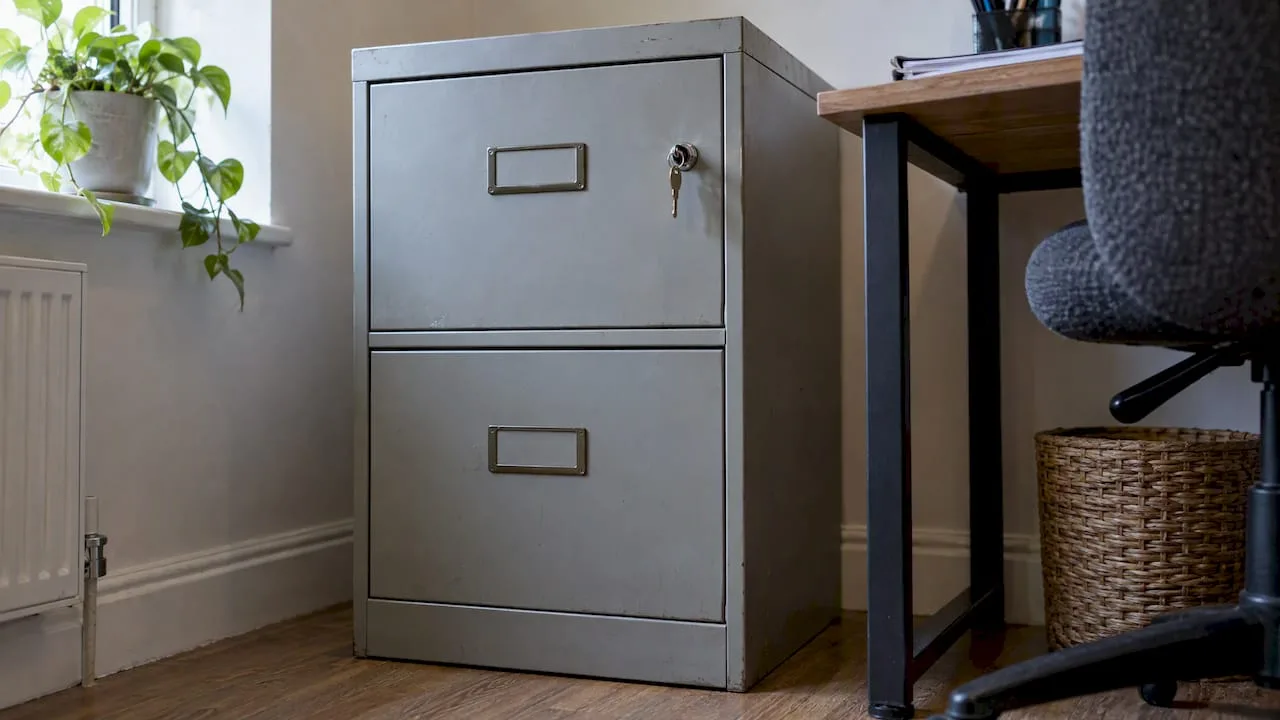
Paper counts as well. The DPC notes that data protection applies to manual records that are part of a filing system, and says paper should be kept securely, such as in a locked cabinet when not in use.
Step 6: Back up, because access can still go wrong
No access setup is perfect, so plan for the day something is deleted, encrypted or tampered with. The NCSC recommends keeping business backups in a secure location, such as a cloud-based service or an air-gapped external drive, so attackers who get onto your network cannot alter them.
Two things people forget:
- Microsoft 365 and Google data is not automatically the same as a backup. See our page on Microsoft 365 backup for small businesses.
- A backup you have never restored is a hope, not a plan. Our restore-test log gives you a simple routine, and the 20-minute disaster recovery guide shows where to begin.
Step 7: Train people and manage joiners and leavers
Technology only covers part of the problem. The Data Protection Commission treats staff awareness as a key security control. It says training should cover the risks of data compromise, each person’s responsibilities and how to respond when something goes wrong, and that scenario-based training can be more effective. Staff should not share passwords, write them down casually or open unexpected attachments before they have been screened.
For a small team, that can be a short session twice a year plus a quick message when a new scam is doing the rounds. Our article on phishing training on Microsoft 365 shows one way to run it.
The same guidance recommends a “joiners, movers and leavers” process. In plain terms:
- Joiner: create their own account, give the minimum access, enrol MFA on day one.
- Mover: when someone changes role, add what they now need and remove what they do not.
- Leaver: remove access quickly when employment ends, including email, cloud apps, VPN and any shared passwords they knew.
If you want this to run without anyone forgetting a step, see onboarding automation for approvals and access.
Your Irish data protection duties
Remote working does not change your GDPR duties: personal data of customers and staff must still be protected wherever it is handled. The Irish government’s guidance says businesses should observe the Data Protection Acts and GDPR regarding employee privacy, balanced against the employer’s right to protect its business, resources and equipment. In practice that means telling staff what monitoring, if any, you do, and keeping it proportionate.
The DPC and the NCSC have both published guidance on remote access, protecting personal data and working from home, and both are worth bookmarking. For the wider picture, our plain-English guide to GDPR for small Irish businesses explains what you actually need to do.
A remote work security checklist you can copy
Use this as a starting point and tick each line for every person who works away from the office.
Accounts
- [ ] Own login, no shared accounts
- [ ] MFA on email, files, accounting, CRM and admin accounts
- [ ] Passwords in a business password manager
- [ ] Access limited to what the role needs
Devices
- [ ] Automatic updates on
- [ ] Screen lock and disk encryption
- [ ] Antivirus or endpoint protection active
- [ ] Lost-device plan agreed
Network and place
- [ ] Router updated, default Wi-Fi password changed
- [ ] VPN or secure connections on public Wi-Fi
- [ ] Screen locked and laptop shut down when unused
- [ ] Paper records and calls kept private
Data and people
- [ ] Backups stored securely and restore-tested
- [ ] Staff trained on phishing and who to tell if something looks wrong
- [ ] Leaver process removes access quickly
- [ ] Access reviewed on a regular schedule
Where to start if you have a mixed set-up
Many small businesses have a mix: Microsoft 365 email, an old accounting program on one PC, a few personal phones and a contractor who still uses a password from 2021. You do not need to fix everything at once. A sensible order is:
- MFA on email and admin accounts.
- Remove shared and unused accounts.
- Update and lock every device.
- Check backups and restore one file.
- Only then look at VPN or remote desktop for the legacy system.
If you want a broader view of what you can handle yourself, our DIY IT guide for small businesses is a good companion.
Our view on remote access
We see the same pattern in small businesses: the tools are rarely the problem. The gaps are usually a shared login, an old account nobody removed or a device that has not been updated for months. Fixing those costs far less than buying a new product.
That is why we start with a conversation about who needs access to what, then agree the scope before any work begins. You have one person to contact for the lot, covering Microsoft 365, business email, backups, security and staff training, with remote support and on-site work where agreed.
We would rather set up a few well-chosen controls that your team actually uses than a complicated system that gets switched off. Good remote access should feel ordinary to your staff and dull to an attacker.
hostme.ie
Get help setting it up
hostme.ie provides practical IT support for sole traders and small businesses, especially in County Galway and County Mayo. That includes Microsoft 365 and business email, backups, cloud support and security work such as MFA and device set-up. We can review how your team connects today, agree what needs changing and do the work remotely or on site where agreed. Managed support has an initial 12-month term, while ad-hoc help and separately scoped projects are also available, and we agree scope, cost and terms before work begins.
See our security and SSL service or the IT support page, then message us on WhatsApp. Phone and email work too. You can also read about local support in Claregalway, Tuam and Claremorris.
FAQ
Is a VPN enough to make remote access secure?
No. A VPN encrypts the connection, but it does not stop someone logging in with a stolen password. Pair it with MFA, updated devices and limited permissions. The NCSC also recommends a VPN or secure connections on public Wi-Fi, so it is one useful layer rather than the whole answer.
Do I need remote desktop for a small business?
Only if you have software that runs on one office computer and cannot move to the cloud. Where you do need it, do not expose it openly to the internet. Put it behind MFA and a VPN or gateway, and give access to named people only.
Can staff use their own phones and laptops?
Yes, if you set clear rules first. Require a screen lock, updates and MFA, and make sure you can remove business data when someone leaves. The DPC advises that staff working remotely keep devices safe and updated and use strong access controls.
How often should I review who has access?
The DPC says access should be reviewed regularly and removed quickly when employment ends. For a small team, a check every few months, plus a fixed step in your leaver process, is a practical rhythm.
What should I do if I think an account has been compromised?
Change the password, sign the user out of all sessions, check for unfamiliar email rules or devices, and tell your IT contact straight away. If personal data may be affected, the DPC has guidance on your reporting duties under GDPR.
Sources
- Guidance for working remotely, Department of Enterprise, Tourism and Employment
- Cyber security for small business, NCSC Ireland
- Data Security Guidance Note, Data Protection Commission
- Protecting Personal Data When Working Remotely, Data Protection Commission
- Working from Home guidelines, Irish public service
- What is secure remote access?, Cisco