Email Alias vs Mailbox: Which Does Your Business Need?
Email alias vs mailbox, plus shared mailboxes and distribution lists in Microsoft 365: what each does, what it costs in licences, and which suits a small business.

An alias is an extra address that delivers into a mailbox you already have. A mailbox is the real thing: its own inbox, login and storage. If one person handles the address, use an alias. If a team needs to read and answer it, use a shared mailbox. If you only need to send one message out to several people, use a distribution list.
That covers most small businesses. The rest of this guide explains why, what each option does in Microsoft 365, where licences come into it, and the mistakes we see when an alias is asked to do a mailbox’s job.
TL;DR
- Alias: an extra address for an existing mailbox. No login, no storage, no extra mailbox. Best for
info@orsales@handled by one person. - Mailbox: its own inbox, password and storage. Needed for anyone who must keep their own mail and history.
- Shared mailbox: one inbox several people read and reply from. Best for
support@oraccounts@handled by a team. - Distribution list: forwards a copy to each member’s own inbox and stores nothing. Best for announcements and internal updates.
- When you are unsure, ask: is this address handled by one person or by a team?
Table of Contents
- What an alias is, and what a mailbox is
- Alias vs mailbox at a glance
- When an alias is the right choice
- When you need a separate mailbox
- Shared mailbox: one inbox for a team
- Distribution list: one message to many inboxes
- Shared mailbox vs group
- Which one to choose: a quick decision guide
- Mistakes to avoid
- Privacy, tracking and security
- A hostme.ie view
- Getting your email set up properly
- FAQ
- Sources
What an alias is, and what a mailbox is
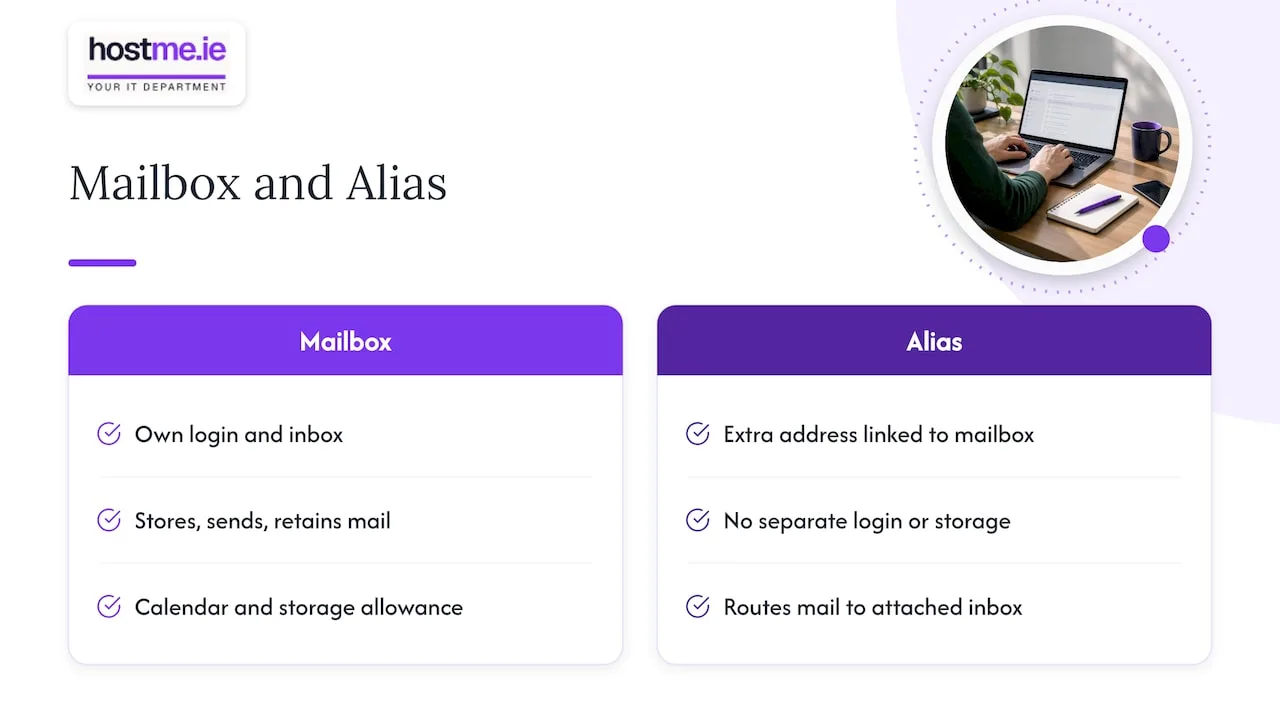
A mailbox is a storage space for email. You receive, organise and send messages from it, and it has its own login. In Microsoft 365 that is a user account with an inbox, a calendar and a storage allowance.
An alias is only an additional address. An alias has no password, login or storage of its own: mail sent to it lands in the mailbox it is attached to. The Soverin knowledge base describes it the same way: an extra address linked to an existing mailbox.
A simple picture: the mailbox is the letterbox on your door, and the alias is a second name on the same letterbox. The postman delivers to one place whichever name is on the envelope.
This matters because the two are not interchangeable. Aliases route mail, while mailboxes store, send and retain it. Problems such as mail vanishing when someone leaves, or replies going out from the wrong address, usually come from using an alias for a job that needs a mailbox.
Alias vs mailbox at a glance
| Alias | Mailbox | |
|---|---|---|
| Own inbox | No, delivers to the main mailbox | Yes |
| Own login | No | Yes |
| Own storage | No | Yes |
| Extra mailbox on your plan | No | Yes |
| Typical use | info@, sales@, old or alternative names |
A person’s day-to-day email |
| Who sees the mail | Whoever owns the mailbox | Whoever has the login or delegated access |
When an alias is the right choice
Use an alias when:
- one person handles everything sent to that address;
- you want several branded addresses without paying for several mailboxes;
- you have a short-term campaign, such as
spring@for a promotion, that can be switched off later; - you are changing your business name or domain and want the old address to keep working.
One rule of thumb that holds up well: is the address handled by one person or by a team? One person means an alias, a team means a shared mailbox.
For a sole trader this is usually the whole answer. You have one mailbox, such as you@yourbusiness.ie, and a few aliases like info@, orders@ and accounts@ that all arrive in the same inbox. Customers see a tidy, professional address. You sign in once.
How aliases work in Microsoft 365
In the Microsoft 365 admin centre you go to Users, then Active users, select the person, add the alias under their username and email settings, choose the domain and save. Admins can add up to 400 aliases per user at no extra licence cost, and changes can take up to 24 hours to show. Because aliases are tied to the user’s account, they do not count as extra mailboxes either.
If you are still choosing a platform, our comparison of Microsoft 365 vs Google Workspace for business covers the wider picture.
Receiving as an alias is not the same as replying as one
This catches people out. An alias is for receiving. Replies are sent from the mailbox the alias delivers to unless you set up sending from the alias. In Microsoft 365, receiving as an alias and replying as that alias are separate questions, so confirm that your service and email app really use the intended From address before you print it on your van or invoices.
If customers email info@ and get a reply from john@, you have not broken anything, but it can look inconsistent. Test it by sending yourself a message from the alias before you publish the address.
When you need a separate mailbox
Give someone a full mailbox when they need their own private mail, their own calendar, their own login and their own record of what they sent and received. Every employee who works in email day to day should have one.
A mailbox is also the safer home for anything that must outlast a person’s involvement. If accounts@ is only an alias on one person’s mailbox and that person leaves, access to the history goes with them. That is the moment a shared mailbox, which belongs to the business rather than an individual, would have been the better choice.
Shared mailbox: one inbox for a team
A shared mailbox is a real inbox with its own address and message history, which several people open from their own Outlook. In Microsoft 365, a group can monitor and send email from a shared address such as info@contoso.com, and replies appear to come from that shared address rather than from the individual.
It suits:
support@,bookings@oraccounts@where someone must always answer;- teams who need to see who has replied to what;
- cover for holidays and sickness, because anyone with access can pick up the thread.
Licensing and limits
Microsoft’s own guidance sets out the main points:
- A shared mailbox holds up to 50 GB without a licence. To reach 100 GB you assign an Exchange Online Plan 2 licence to the mailbox. Our Exchange Online Plan 1 vs Plan 2 guide explains the difference.
- It is limited to 25 users. Past that, Microsoft recommends a Microsoft 365 group.
- Only people inside your organisation can use it. External users cannot be given access.
- It is not intended for direct sign-in. Block sign-in for its account and let delegates open it through their own mailboxes.
The people who use the shared mailbox still need their own Microsoft 365 accounts with Exchange Online. So the saving is the mailbox itself, not the people using it.
Distribution list: one message to many inboxes
A distribution list is a different tool for a different job. It forwards a copy of each incoming message to every member’s personal inbox, stores nothing centrally, has no shared sent folder and needs no licence.
That has a consequence for customer email. Each member gets a copy and cannot see whether anyone else has replied, which leads to duplicate or conflicting answers. A shared mailbox keeps one copy for the team, with replies in the same thread.
A distribution list works well for:
staff@announcements;- sending the same update to a project group;
- one-way notices where nobody needs to track a reply.
On size, a distribution list in Exchange Online can have up to 100,000 members, against 25 users for a shared mailbox. Most small businesses will never get near either limit.
Microsoft’s own community answers draw the same line: if every member should get a copy in their own inbox, a distribution group fits; if messages and replies should be managed in one place, a shared mailbox is the usual choice.
Shared mailbox vs group
People also ask how a shared mailbox differs from a group. In Microsoft 365, a Microsoft 365 Group is a bigger bundle. It provisions a shared mailbox, calendar, SharePoint site, Planner plan and OneNote notebook. The group itself needs no separate licence, but members need licences for the services they use.
Choose a group when a project team needs shared files, a calendar and conversations together, or when you outgrow 25 users or need to include people outside the business, which Microsoft says to consider an Outlook group for. For a plain support@ inbox, a shared mailbox is simpler. If your files are part of the question, see our guide to SharePoint vs OneDrive.
Which one to choose: a quick decision guide
Work through these questions in order:
- Does a person need private email, a login and their own history? Use a mailbox.
- Is the address handled by one person? Use an alias on that person’s mailbox.
- Does a team need to read and reply, and see each other’s replies? Use a shared mailbox.
- Do you just need to send one message to many people? Use a distribution list.
- Do you need files, a calendar and chat around the address too? Use a Microsoft 365 group.
Worked examples (fictional)
These are made-up businesses to show the thinking, not real clients.
A plumber working alone in Mayo. One mailbox, plus aliases info@, quotes@ and accounts@. All arrive in one inbox and the business pays for one mailbox.
A four-person accountancy in Galway. Each person has a mailbox. office@ is a shared mailbox so whoever is in can answer clients and everyone sees the thread. staff@ is a distribution list for internal notices. john.murphy@ and j.murphy@ are the same person, so the second is an alias.
A shop with a seasonal sale. A sale@ alias on the owner’s mailbox runs for the campaign. When it ends, the alias is removed and nothing else changes.
Mistakes to avoid
- Using an alias for a team inbox. Only one person sees the mail, and cover for absence is awkward.
- Using a distribution list for customers. Several people may answer the same message differently.
- Letting a shared mailbox be a normal login. Block direct sign-in and use delegated access.
- Forgetting the From address. Check the alias sends as itself, or decide that replies from the main address are fine.
- Leaving old aliases and forwarding rules in place. Forgotten forwarding is a common route for mail to end up where it should not. Email security monitoring should review forwarding rules, aliases, distribution lists, shared mailbox permissions and delegated access.
Privacy, tracking and security
Can alias emails be tracked? An alias on your own domain is managed by your own email system, so what is logged depends on how your tenant is set up. Two practical points matter more for a small business.
First, data protection. If an address lets someone identify, contact or single out an individual, it is personal data and data protection obligations apply. An alias such as firstname.surname@ used internally to identify a staff member may count. If you monitor staff mail, keep the purpose to security. Adaptive Security advises against stretching monitoring into judging productivity or profiling employees without separate lawful justification. For Irish rules specifically, check the Data Protection Commission’s guidance or ask your adviser.
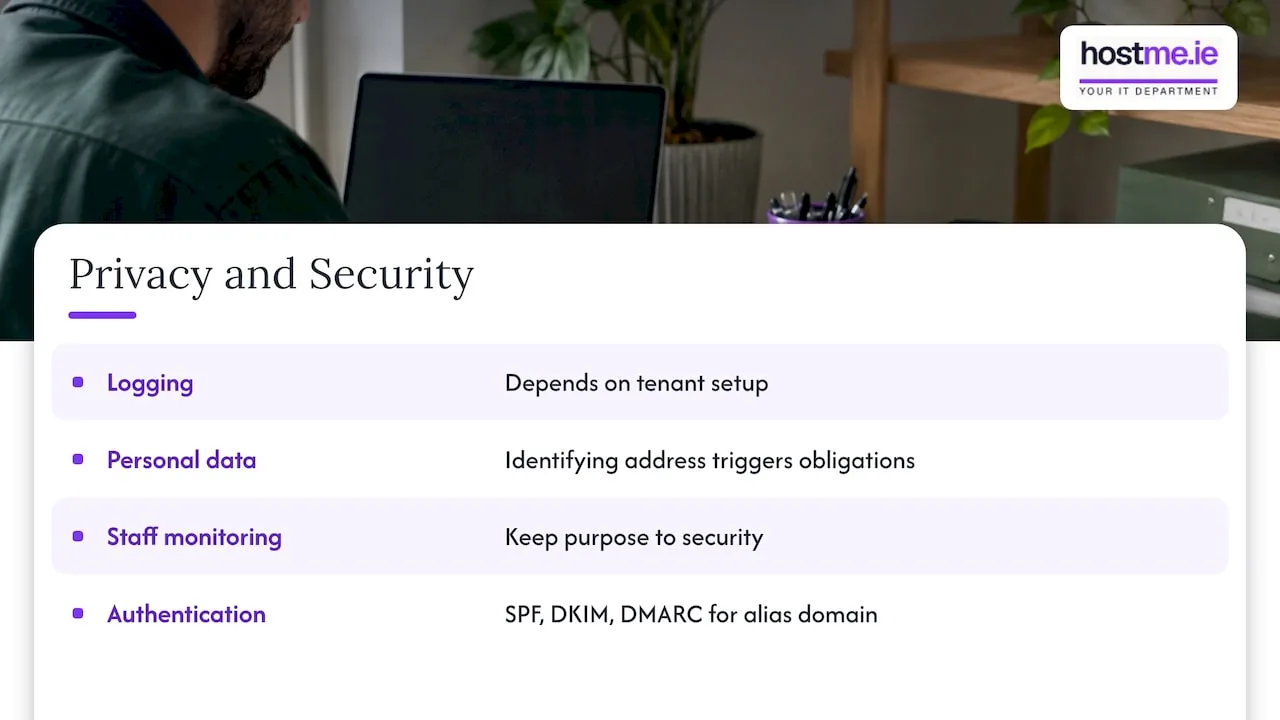
Second, authentication. When you send from an alias, SPF, DKIM and DMARC records need to be configured for the alias domain, not only the mailbox domain. Otherwise mail can fail authentication even though the main mailbox works. This applies mostly if your aliases use a different domain from the mailbox. Our business email setup checklist covers the DNS side.
A hostme.ie view
We see the same pattern with small businesses: the email setup grew one address at a time, and nobody decided what each address was for.
info@is an alias on one person’s mailbox,accounts@is a forwarding rule nobody remembers, and a shared inbox is a shared password.Our approach is to agree the purpose first. We ask who answers each address, who needs to see the replies and what happens when someone is away. Then we match the tool: aliases for single-person addresses, shared mailboxes for team addresses, distribution lists for announcements. The result is cheaper to run and easier to hand over when staff change.
As one person to contact for practical business IT, we scope the work before it starts, so you know what is being changed in Microsoft 365 and why. If your email also touches backups or security, we look at those together; see our notes on Microsoft 365 backup.
hostme.ie
Getting your email set up properly
If your aliases, shared inboxes and mailboxes have grown without a plan, hostme.ie can review what you have and agree a scope before any changes. Our business email service covers setup, Microsoft 365 and Google Workspace management, and tidy-ups like these. Contact us by WhatsApp, phone or email, whichever suits you, and tell us how many people handle your email.
FAQ
What is the difference between an email alias and a mailbox?
A mailbox has its own inbox, login and storage. An alias is an extra address that delivers into an existing mailbox and has none of those things itself. You can have many aliases pointing at one mailbox.
Should I use a shared mailbox or a distribution list?
Use a shared mailbox when people need to read and reply to the same messages, such as support@. Use a distribution list when you only want to send one message to many people. A list stores nothing centrally, so nobody can see what others replied.
Do aliases and shared mailboxes cost extra in Microsoft 365?
Aliases do not need an extra licence. A shared mailbox does not need its own licence up to 50 GB, but the people using it need their own Microsoft 365 accounts. Going to 100 GB needs an Exchange Online Plan 2 licence on the mailbox, per Microsoft’s guidance.
Can I reply from an alias address?
Often yes, but it is a separate setting from receiving. Check that your email service and app let you choose the alias as the From address, then send a test to yourself before you use it with customers.
When should I use a group instead of a shared mailbox?
Choose a Microsoft 365 group when you need shared files, a calendar and conversations as well as email, or when more than 25 people need access. A shared mailbox is simpler for a single team inbox.
Sources
- Extra addresses without an extra mailbox: email aliases (Sitewig)
- The difference between a mailbox and an alias (Soverin)
- Email Alias vs Mailbox: How to Choose (TrekMail)
- Email Aliases vs Shared Mailboxes: Which Do You Need? (DigiCloudMail)
- Add another email alias for a user (Microsoft Learn)
- Mailboxes, aliases and shared inboxes (Hostfino)
- Open and use a shared mailbox in Outlook (Microsoft Support)
- About shared mailboxes in Microsoft 365 (Microsoft Learn)
- Understanding Email Account Types in Microsoft 365 (Ursinus)
- Shared Mailbox vs Distribution List Explained (InboxAlly)
- Shared Mailbox vs Distribution List: Microsoft 365 and Google (TriageFlow)
- Confusion between a shared mailbox and a distribution list (Microsoft Q&A)
- Do Office 365 Groups Require a License?
- Email Security Monitoring (Adaptive Security)
- Are Work Email Addresses Considered Personal Data? (Sprintlaw)
- Email alias vs mailbox: what changes for sender auth (ReviewMyEmails)