SharePoint vs OneDrive: Which Should Your Business Use?
SharePoint vs OneDrive explained for small Irish businesses: what each is for, how permissions and storage differ, and how to set up files so nothing is lost.

Use OneDrive for files that are yours alone: drafts, personal working files and anything not ready to share. Use SharePoint for anything the business needs to keep, whoever created it: client files, contracts, templates and shared project folders. Both come with Microsoft 365, and both sync to File Explorer or Finder, so the real decision is where each file lives and who owns it.
This guide is for sole traders and small businesses, including those in Galway and Mayo, who already pay for Microsoft 365 or are about to. It covers the differences that matter, a simple rule for choosing, how permissions work, the storage limits that catch people out, and how to move files without breaking links. It also answers the usual side questions about Dropbox and Google Drive.
TL;DR
- OneDrive is personal storage tied to one user account. SharePoint is shared storage owned by a team or the business.
- Put business-critical files in SharePoint. If the person who created a file leaves, their OneDrive can become a problem. A SharePoint library does not.
- Both sync to your computer through the same OneDrive app, so day-to-day use feels the same.
- Moving files from OneDrive to SharePoint can break existing links, so tell your team before you do it.
- A sole trader with no staff can often run everything from OneDrive. Add SharePoint when a second person, an accountant or a subcontractor needs regular access.
Table of Contents
- What OneDrive and SharePoint each do
- SharePoint vs OneDrive at a glance
- A simple rule for deciding
- Permissions: where the two really differ
- Storage and limits you should know about
- What happens when someone leaves
- Syncing: you do not have to choose between web and desktop
- Moving files from OneDrive to SharePoint
- What about Dropbox and Google Drive?
- Our view: set up for the day someone leaves
- Help setting this up
- FAQ
- Sources
What OneDrive and SharePoint each do
Microsoft describes OneDrive as a cloud storage platform that suits small businesses as well as large ones. Each person gets their own space. Files there are private until the owner shares them.
SharePoint is where team content lives. A SharePoint site holds document libraries, pages and lists, and access is controlled at site level rather than by one person. Microsoft’s own guidance is that if you are working on a file alone, save it to OneDrive. If you are already working as a team, save it in the team’s space.
A plain way to think about it:
- OneDrive is your personal briefcase for work in progress.
- SharePoint is the office filing cabinet that stays put when people come and go.
It also helps to know that they share an engine. Files in Microsoft Teams channels are stored in SharePoint, so if you use Teams you are already using SharePoint, whether you meant to or not. Microsoft says the same: SharePoint is the back end for Teams files.
SharePoint vs OneDrive at a glance
| OneDrive | SharePoint | |
|---|---|---|
| Who owns the files | One user | The team or business |
| Default access | Private to the owner | Set by site or library permissions |
| Best for | Drafts, personal working files, one-person businesses | Client folders, shared templates, project files, policies |
| If the person leaves | Files may become inaccessible once the account is removed | Files stay with the site |
| Storage | Per user, based on licence | Pooled across the organisation |
| Syncs to File Explorer or Finder | Yes | Yes, through the same OneDrive app |
| Works with Teams | Private chats and one-to-one sharing | Channel files and team sites |
A simple rule for deciding
Ask one question: if I vanished tomorrow, would the business still need this file?
- Yes: SharePoint.
- No, it is mine and half finished: OneDrive.
- Not sure: start in OneDrive, then move it to SharePoint once it is ready for others.
That last point is a common workflow. You draft a quote or proposal privately, then publish the final version into the client folder on SharePoint.
Examples for a small business
These are illustrative setups, not client stories.
- A sole trader electrician. Quotes, certificates and invoices for the business could all sit in OneDrive. There is one person, so ownership is not a problem. The risk is losing the laptop or the account, which is a backup question rather than a SharePoint one.
- A five-person accountancy or bookkeeping office. Client folders belong in a SharePoint library with access limited to the people who work on those clients. Each person keeps their own drafts and personal notes in OneDrive.
- A retailer with a part-time office manager. Price lists, supplier details and staff documents go in SharePoint. The owner and office manager both reach them without emailing attachments.
Permissions: where the two really differ
OneDrive depends on the owner sharing each file or folder deliberately. That works for occasional sharing. It gets messy once ten people share forty folders each, because nobody can see the full picture.
SharePoint is built for managed access. Microsoft’s guidance lists version history, check-in and check-out, and fine-grained permissions among its document management features. For a small business, a workable setup looks like this:
- Create one site per area of the business, such as Clients, Finance and Admin, rather than one giant site.
- Give access to groups, not individuals. When someone joins or leaves, you change one group.
- Keep sensitive areas separate. Payroll and HR documents should not sit in a library the whole team can open.
- Limit who can share externally. Decide whether staff can send links to people outside the business, and who approves that.
- Review access twice a year. A ten-minute check catches former subcontractors who still have access.
Team site or communication site?
SharePoint offers two main site types. A team site is for people working together on files, and it is connected to a Microsoft 365 group or a Teams team. A communication site is for publishing information to a wider audience, such as a staff handbook or news page, where most people only read.
For most businesses with under 20 staff, team sites cover almost everything. You rarely need a communication site until you have content that many people need to read but few need to edit.
Storage and limits you should know about
Storage is a place where the two behave differently.
- OneDrive storage is per person and set by licence. Microsoft states that every user’s OneDrive limit is defined by their licence. If you go over, the OneDrive can become read-only until you free up space or upgrade. Version history and recycle bin contents count towards your usage.
- SharePoint storage is pooled across the organisation. Microsoft’s documentation gives a base of 1 TB plus 10 GB per purchased licence, and if you run out in total, the environment can be put into read-only mode. Check your total capacity in the Microsoft 365 admin centre now and then.
For a team of five on a standard plan, that pool is generous for documents. It is smaller than people expect if you store large video, CAD or photo libraries in SharePoint. If that describes your business, plan storage before you move everything over.
Deleted files and recovery
Deleted files stay in the recycle bin for 93 days on work or school accounts, and OneDrive’s Files Restore lets you roll back to any point in the previous 30 days. This is useful after accidental deletion or ransomware.
It is not the same as a backup. Recycle bins and version history protect against common mistakes. They do not replace a separate copy held outside Microsoft’s service. If that matters to you, read our guide to Microsoft 365 backup for small businesses.
What happens when someone leaves
This is the strongest practical argument for SharePoint, and the one most small businesses learn the hard way.
Files in a personal OneDrive belong to the individual’s account. IT guidance from Kutztown University notes that files in SharePoint are owned by the group and persist after the person who uploaded them leaves, while a deleted account can make personal files inaccessible.
Microsoft’s documentation sets out the timings. When a user is deleted, the OneDrive cleanup process begins, and if you give another person access, they have 30 days by default to get the files they want to keep. Unlicensed OneDrive accounts are archived on their 93rd unlicensed day.
So you do have a window, but it is easy to miss when a departure is untidy. Two habits avoid the problem:
- Keep business files in SharePoint from the start.
- When someone leaves, add a manager as an owner of their OneDrive before the account is deleted, and sort through what is business-critical.
A common misconception is that OneDrive is automatically shared with the company. It is private until the owner shares it. Treating it as a shared department drive is the biggest mistake we see recommended against.
Syncing: you do not have to choose between web and desktop
Both tools use the same OneDrive sync app. Once you install it on Windows or Mac and sync a team site library, you can work with the files in File Explorer or Finder and save to the team site straight from your programs.
In practice, staff see a folder called OneDrive – Your Business for personal files and another folder for each synced SharePoint library. Two tips:
- Sync only the libraries you use daily. Syncing everything slows older laptops and clutters File Explorer.
- Use Files On-Demand. Files show as online-only until opened, which saves disk space.
Moving files from OneDrive to SharePoint
Most businesses already have shared files in the wrong place. Moving them is simple, but not without side effects. Microsoft warns that if you move a document from OneDrive to a SharePoint site, existing links to it will stop working. Microsoft Loop components moved out of their original OneDrive folder can also fail to load.
A safe approach:
- List what needs to move. Start with client folders and shared templates, not everything.
- Create the SharePoint library and set permissions first.
- Tell your team which folders are moving and on what day.
- Move the files and re-share the new links.
- Check the result. Open a few files as a normal staff member, not as the admin.
- Retire the old shared folders after a short overlap, so nobody keeps saving to them.
If you are moving between Microsoft 365 organisations rather than inside one, see our Microsoft 365 tenant migration checklist.
What about Dropbox and Google Drive?
SharePoint and OneDrive are the natural choice if you already pay for Microsoft 365. The same licence gives you email, Office apps, Teams and both storage tools. Microsoft 365 Business Basic is listed at €6.07 per user per month on an annual plan, excluding VAT, at the time of writing. Check the page for the current price before you budget.
SharePoint vs Dropbox
Dropbox is a file-sharing service with simple sharing and a clean interface, and many people like it for exchanging large files with clients. Its weak point for a business already on Microsoft 365 is that you are paying for a second storage service and managing a second set of users and permissions. SharePoint adds no extra cost and connects directly to Teams, Outlook and Office. If your business is already on Dropbox and it works, there is no urgent need to move. If you are choosing fresh and use Microsoft 365, SharePoint is usually the simpler option.
Google Drive shared drives
If your business runs on Google Workspace, the equivalent of SharePoint is a shared drive. Files in a shared drive belong to the team rather than to one person. This is different from My Drive, where files belong to an individual. The logic is the same as above: business files go in the shared space, personal drafts in the personal one. Our guide to Google Workspace security for small teams covers sharing settings, and if you are weighing a move, see Google Workspace migration: tools and plan.
The best platform is the one your team will use consistently. Mixing three of them is the worst result.
Our view: set up for the day someone leaves
We support Microsoft 365 for sole traders and small businesses, and we see the same pattern. Files grow in whatever folder was nearest at the time. Nobody decides where things belong, and the gap shows up when someone leaves, a laptop fails or an accountant asks for last year’s records.
Our advice is deliberately plain:
- Decide where each type of file lives before you buy more storage or more tools.
- Keep the structure small. Three or four SharePoint sites are easier to manage than twelve.
- Treat permissions as a business decision, not a technical one. The owner should know who can open payroll and client contracts.
- Do not assume OneDrive or SharePoint is a backup. Version history and the recycle bin are a safety net, not a second copy.
- For a one-person business, keep it simple. OneDrive alone is fine until someone else needs regular access.
We would rather agree a small, clear structure with you than build a complicated one you will not follow. Scope is agreed before work begins.
— hostme.ie
Help setting this up
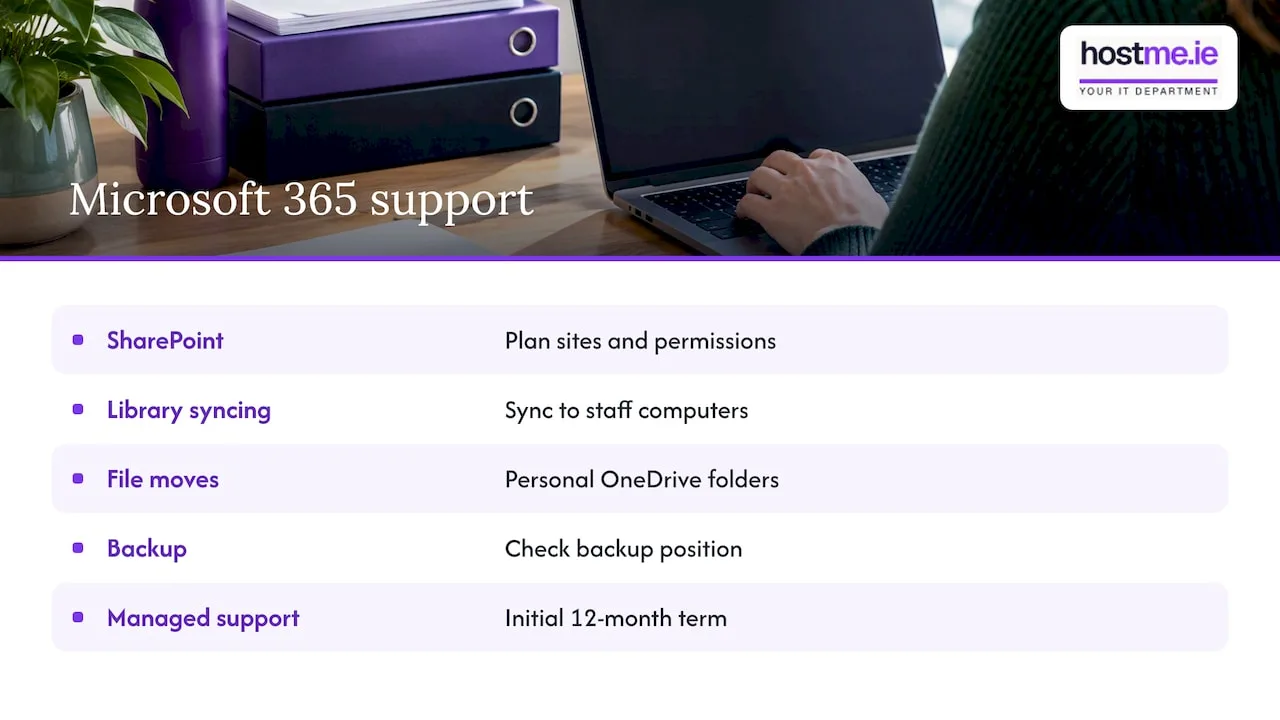
If you want the structure set up properly, hostme.ie is one person to contact for practical Microsoft 365 help. That includes planning your SharePoint sites and permissions, syncing libraries to staff computers, moving files from personal OneDrive folders, and checking your backup position. Work is available remotely, and on-site where agreed. Ad-hoc help and separately scoped projects are available, and we agree scope, cost and terms before we start. Managed support has an initial 12-month term.
Start on our IT support page, where you can message us on WhatsApp. Phone and email are there too if you prefer them. If Teams is part of the picture, our Microsoft Teams admin services page explains how that fits.
FAQ
Should I use SharePoint or OneDrive?
Use OneDrive for personal drafts and working files, and SharePoint for anything the business needs to keep regardless of who made it. If you are a sole trader with no staff or collaborators, OneDrive alone is usually enough. Add SharePoint when other people need regular access.
Is OneDrive a backup?
No. OneDrive syncs files and keeps a recycle bin and version history, so deleted or changed files can often be restored for a limited time. That helps with mistakes. It is not an independent copy of your data, so a separate backup is still worth having.
Do SharePoint and OneDrive use the same storage?
Not in the way people assume. OneDrive storage is per user and set by licence. SharePoint storage is pooled across the organisation, with a base amount plus an allowance per licence. Both are managed in the Microsoft 365 admin centre.
What are the disadvantages of SharePoint?
It takes more planning than OneDrive. Poorly set permissions can expose files to the wrong people or lock out the right ones. Moving existing files can also break links. A small, clear site structure and a short permissions review avoid most of these problems.
Sources
- Should I save files to OneDrive or SharePoint? (Microsoft Support)
- Overview of OneDrive in Microsoft 365 (Microsoft Learn)
- OneDrive storage quota FAQ (Microsoft Learn)
- OneDrive retention and deletion (Microsoft Learn)
- Sync in SharePoint and OneDrive (Microsoft Learn)
- Introduction to SharePoint and OneDrive (Kutztown University IT Solutions Center)
- Microsoft 365 Business Basic (Microsoft Ireland)