Google Workspace migration: tools, file shares and planning
Plan a Google Workspace migration with tool choices, file-share requirements and checks for email, permissions and handover. Get the free Excel planning pack.
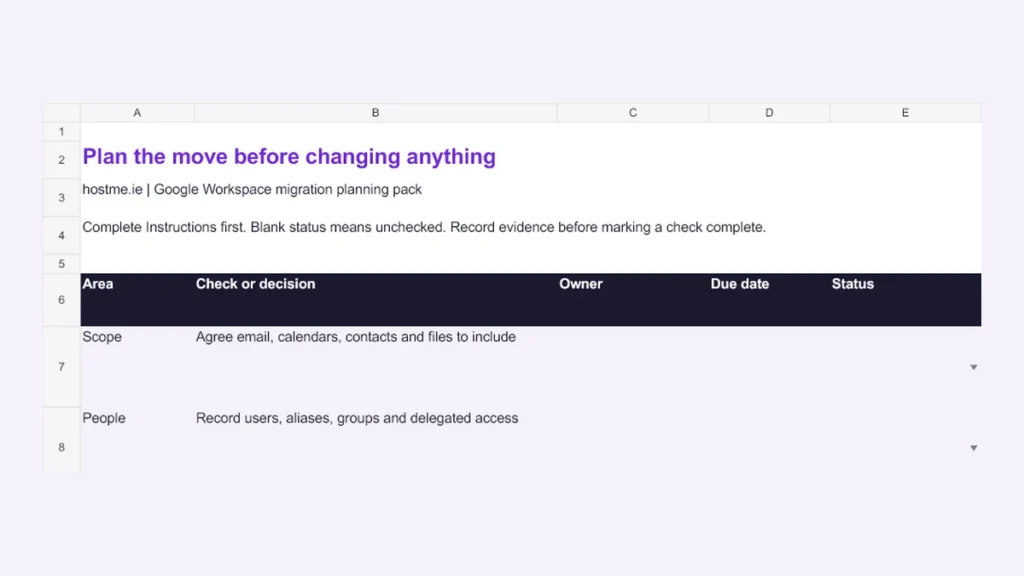
Moving to Google Workspace involves more than copying an inbox. First decide which email, calendars, contacts and files the business needs, who should have access afterwards and how you will check that the move worked.
This guide explains the main tool choices, what to check when moving file shares to Google Drive and how to organise a small-business migration. It is a planning guide, not a promise that every source item will transfer unchanged.
Start with the free migration planning pack
Three editable Excel worksheets cover readiness, permissions and cutover checks. Instructions and a fictional example show how to record owners, evidence and unresolved issues.
Download the Excel planning pack · No email signup.
Need help planning the move? Explore Google Workspace setup and migration support across Ireland. We agree the scope, access and work before changes are made.
Can Google Workspace Migrate move file shares to Drive?
Yes. Google Workspace Migrate supports moving folders and files from file shares into Google Drive. Google specifies a share accessible from Windows, such as SMB or NFS, a UNC path and a connecting account with full control of the source content. Check both the file-share requirements and the platform requirements before choosing this route.
Permissions need a deliberate plan. The tool can translate file and folder access controls into Drive sharing, but settings for inherited permissions and identity mappings affect the result. Google lists hidden files and folders as unsupported. Read the supported and unsupported file-share features for the current details.
In practice, list each important share, its business owner and the intended destination before the pilot. Decide whether the existing permissions are still appropriate. Test access with someone who should be allowed in and someone who should not; a matching file count does not prove that sharing is correct.
Which migration tool fits your source?
Google publishes a migration product matrix covering source systems and organisation sizes. Use it to shortlist a route, then check the specific data types, edition requirements and limitations. A user-count threshold alone is not enough to choose a tool.
- Email providers, Exchange Online and other cloud sources: check the current data import options and the documentation for your exact source. Mail, calendars, contacts and cloud files may need different paths.
- Outlook profiles or PST files: Google Workspace Migration for Microsoft Outlook (GWMMO) can import email, calendars and personal contacts. Outlook Notes, tasks, journal entries and RSS feeds are not imported. See Google’s GWMMO import details.
- File shares or a more involved migration: assess Google Workspace Migrate and its infrastructure, access and licensing requirements. It is not simply an upload button in Gmail.
Do not assume that an email migration also moves files, recreates every group or preserves all calendar behaviour. Put each required outcome in the plan and confirm support before starting.
1. Agree the scope and owners
Use the Readiness sheet to record the source systems, approximate volumes, users, aliases, groups and delegated access. Confirm who controls the domain and DNS, who can authorise changes and who owns the destination. Record decisions and due dates; leave a check incomplete until there is evidence for it.
Include scanners, printers, accounting tools and other applications that send email. Agree what happens to older records and who approves retention or disposal. Do not put passwords or recovery codes in the workbook.
2. Pilot real working patterns
Choose representative accounts and folders, with the business owner’s permission. Include a busy calendar, shared access and a file that relies on external collaboration where these are in scope. Record what was tested, what failed and who will resolve it.
Use the Permissions sheet to compare approved access with the destination. A failed calendar or access test is a reason to investigate before the wider move, even if the import tool reports completion.
3. Agree the change window and acceptance checks
Name the person who can approve go/no-go. Agree the time zone, staff communication, final sync or delta approach for the selected tool and what you will do if acceptance checks fail. Authorised DNS and mail-routing changes should follow that plan.
After the move, test internal and external mail, aliases, groups, sampled messages and attachments, calendar events, contacts, file contents and allowed and denied access. Check the devices and applications staff actually use. Record the result and any unresolved item in the Cutover checks sheet.
4. Hand over before retiring the source
Get the business owner’s acceptance, document support responsibilities and confirm the agreed recovery and backup arrangements. Keep cancellation of the old service as a separate decision, after acceptance and retention requirements are resolved. An import finishing is not, by itself, permission to delete the source.
Need help planning or carrying out the move?
hostme.ie provides Google Workspace setup, migration and support for businesses in Galway and across Ireland. The work is scoped and quoted before changes are made, with migration projects and ongoing support agreed separately.
Discuss your migration on WhatsApp, or get the planning pack from the free downloads library.
Reviewed against the linked Google documentation on 23 September 2026. Product support and requirements can change; check them again when planning your migration.