Outlook Calendar Sharing Not Working? 5 Checks for Small Businesses
Check acceptance and Outlook on the web first, then match symptoms to desktop or permission fixes. Get direct Microsoft 365 support from hostme.ie.

If your Outlook calendar sharing is not working, the fastest check is this: confirm the recipient accepted the invitation, then open Outlook on the web to see if the calendar shows up there. If it does, the problem is likely on the desktop side, and removing and re-adding the calendar (or asking the owner to re-share) usually clears it. The usual culprits are acceptance, permissions, admin policy, or a desktop cache issue. If you run a small business and want someone to look at it directly, hostme.ie is a direct contact point for this kind of fix.
The desktop menu paths, Safe Mode and profile-reset steps below apply to classic Outlook for Windows. New Outlook and Outlook on the web use different controls; confirm the app before following a desktop step.
TL;DR:
- Select recipients from the Global Address List; external sharing policies, unsupported Microsoft 365 Groups, and invalid addresses can block live calendar invitations.
- If Outlook on the web works but desktop does not, enable shared calendar improvements, re-add the calendar, and allow a few minutes for initial sync.
- Shared mailbox calendars rely on mailbox level access, usually Full Access, while personal calendars use invitations; check each mailbox separately in the Microsoft 365 admin center.
- If the calendar failed after an extension update, launch Outlook in safe mode; normal syncing then points to a conflict with that extension.
- After simpler fixes fail, have an administrator verify an active Exchange Online license; recreate an Outlook profile only when unrelated account problems also appear.
Table of Contents
- Quick checks to find out if it’s a client, server or policy problem
- Step-by-step fixes mapped to common symptoms
- Why a calendar shows in Outlook on the web but not on desktop
- Permission levels and admin policies that block sharing
- Upgrading to the newer shared calendar model
- Checklist before escalating to a tenant admin or Microsoft
- Common conflicts with third-party add-ins
- Shared mailboxes versus individual mailboxes
- Checking licensing issues that affect calendar sharing
- Resolving delegation permission conflicts
- Outlook profile corruption and when to recreate the profile
- How we approach calendar sharing faults for small businesses
- Get hands-on help with Microsoft 365 calendar problems
- FAQ
- Sources
Quick checks to find out if it’s a client, server or policy problem
Before changing any settings, spend a minute confirming where the fault actually sits. These checks separate a desktop glitch from a permissions or server problem.
- Ask the recipient whether they accepted the sharing invitation, and in which client (Outlook on the web or desktop) they accepted it.
- Open Outlook on the web and check whether the shared calendar appears there, since this confirms the permission exists on the server.
- Right-click the calendar, choose Properties, and check whether the Type shows REST (shared calendar improvements) or an older folder type.
- Make sure the recipient was selected from the Global Address List rather than typed from memory, so you’re not sharing with the wrong address.
- Check the Microsoft 365 admin centre Message Centre for any known service incident before assuming it’s a local fault.
A shared calendar normally appears within a few minutes of acceptance. If it has not appeared after some time, move on to the fixes below.
Step-by-step fixes mapped to common symptoms
Different symptoms point to different fixes. Match what you’re seeing to the steps below rather than trying everything at once.
- Invitation never accepted: resend the share and ask the recipient to accept it in Outlook on the web or a fully updated desktop client, since acceptance in an outdated or mismatched client can silently fail.
- Calendar shows “could not be updated” on and off: check the web client first, update Outlook to the latest version, and try turning off cached mode for shared folders as a test.
- Calendar appears but the tick box won’t stay checked: open the Shared Calendars group, tick it manually; if the box is greyed out, close Outlook and run
outlook.exe /resetnavpane, then re-add the calendar. - Events duplicate or vanish: remove and re-add the calendar, since known issues with shared calendar improvements in classic Outlook list duplication and sync errors tied to specific builds.
- Recipient only receives a one-off ICS file, not a live calendar: this usually means autocomplete picked an external address for an internal colleague. Selecting the name from the Global Address List instead of letting autocomplete fill it in avoids this.
Pro Tip: Before changing any setting, note which client the recipient used to accept the share. That detail helps distinguish a client issue from an access or policy issue.
Why a calendar shows in Outlook on the web but not on desktop
This is one of the most common patterns, and it usually comes down to which sharing model is in use. Microsoft’s newer shared calendar improvements use a REST-based connection that mobile apps and the web client rely on by default, while classic desktop Outlook can still fall back to the older MAPI model unless it’s been upgraded.
- Test Outlook on the web first: if the calendar is visible there, the permission and server side are fine, and the fault is local to desktop Outlook.
- On desktop, check whether shared calendar improvements are switched on; if not, enabling them and re-adding the calendar often resolves the mismatch.
- A reset of the navigation pane (
outlook.exe /resetnavpane) or simply removing and re-adding the calendar clears most desktop-only faults. - Mobile apps and the web client generally handle the newer model more reliably, so if desktop keeps failing, it’s worth confirming the same account works correctly on mobile as a sanity check.
Permission levels and admin policies that block sharing
Sharing failures are not always a technical fault. Sometimes the account simply does not have the right permission, or an organisation-wide policy is stepping in.
- Can view when I’m busy: shows free/busy blocks only, no titles or details.
- Can view titles and locations: adds subject and location to the busy blocks.
- Can view all details: full visibility of every item, still read-only.
- Can edit (Editor/Delegate): allows the recipient to add, change or respond to items on the owner’s behalf.
A “This calendar can’t be shared” message usually points to one of three things: an invalid email address, a Microsoft 365 Group that doesn’t support calendar sharing, or an external user the organisation’s sharing policy doesn’t permit. Exchange Online sharing policies can restrict sharing by external domain and cap how much detail an outside recipient ever sees, even when the owner tries to grant more. Always pick recipients from the Global Address List rather than typing an address, since this avoids the single most common cause of sharing silently failing for internal colleagues.
Upgrading to the newer shared calendar model
If desktop Outlook keeps falling out of sync while the web client works fine, upgrading to the current sharing model is usually the fix worth trying properly rather than working around repeatedly.
- Right-click the shared calendar, choose Properties, and check whether the Type field shows REST (new model) or something older.
- If it’s not on the new model, go to File > Account Settings > Account Settings > More Settings > Advanced, and turn on shared calendar improvements.
- Remove the shared calendar, restart Outlook, then re-add it via Home > Add Calendar > Open Shared Calendar.
- Allow time for the initial sync: Microsoft notes this usually takes a few minutes, though very large calendars can take a few hours.
Pro Tip: If you need to disable the improvements, treat it as a one-off diagnostic step rather than a permanent setting. Microsoft does not recommend leaving it switched off long-term, since the older model lacks the reliability fixes built into the newer one.
Checklist before escalating to a tenant admin or Microsoft
Once you’ve ruled out acceptance, client differences and basic permissions, the remaining faults usually sit at the organisation level and need an admin to step in.
- Check Exchange sharing policies for the tenant, including which external domains are allowed and what level of detail they can see.
- Confirm the mailbox type involved (shared mailbox versus a named user’s primary mailbox), since permissions behave differently between the two.
- Review the Message Centre in the Microsoft 365 admin centre for any logged service incident affecting calendars.
- Collect the client and build number used, whether the web client shows the calendar, and any error timestamps or Sync Issues folder entries before raising a ticket.
- For suspected corrupted delegate settings, ask the tenant administrator to review Microsoft’s delegate-reset guidance. The reset downgrades existing delegates to Editor and requires delegate permissions to be granted again. Record the current permissions and agree a restoration plan before considering it.
Common conflicts with third-party add-ins
Add-ins that hook into the calendar, such as scheduling tools, CRM connectors or meeting-room booking plug-ins, can interfere with how shared calendars render or sync. A badly behaved add-in can hold the calendar folder open, delay the sync process, or throw errors that look like a sharing fault when the real cause is the add-in itself.
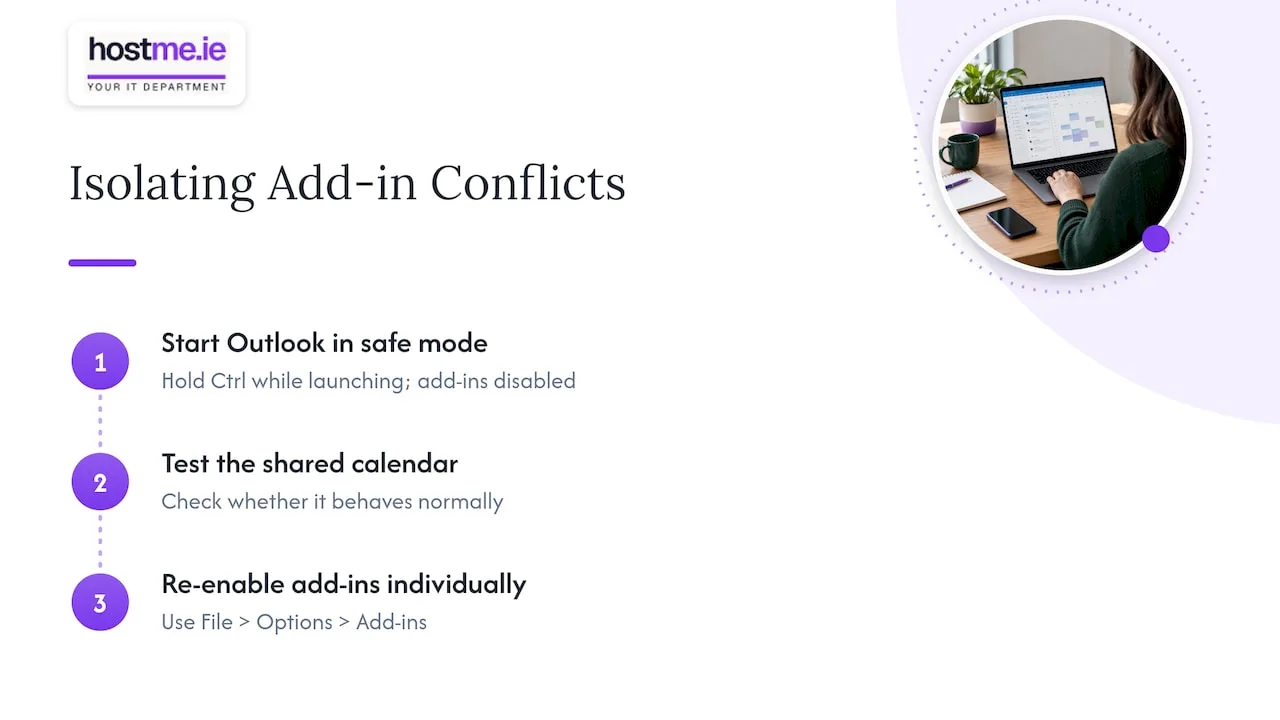
If a shared calendar stopped working shortly after installing or updating an add-in, that timing is worth noting. Start Outlook in safe mode (hold Ctrl while launching, or run outlook.exe /safe) to load Outlook with add-ins disabled, then check whether the shared calendar behaves normally. If it does, re-enable add-ins one at a time through File > Options > Add-ins to find the one causing the conflict.
This is particularly common with tools that manage bookings or appointment scheduling alongside Outlook. If your business relies on an external booking or calendar-sync tool, it’s worth checking its own update notes before assuming the fault lies with Outlook or Microsoft 365. For businesses weighing up a dedicated booking workflow alongside Outlook, a partner guide to calendar booking and synchronisation covers how that kind of integration is typically set up.
Add-in conflicts rarely show a clear error message pointing at the add-in itself, which is why isolating the problem with safe mode first saves time compared with chasing permissions or sync settings that were never actually broken.
Shared mailboxes versus individual mailboxes
Calendar sharing behaves differently depending on whether the calendar belongs to a shared mailbox or an individual’s own mailbox, and mixing the two up is a common source of confusion.
An individual’s calendar is shared directly by that person, who controls the permission level and can revoke it at any time. A shared mailbox’s calendar, by contrast, is accessed through the mailbox permissions assigned to each user, such as Full Access or appropriate calendar-folder permissions. Send As controls sending email and does not grant permission to read the calendar. Anyone with Full Access to a shared mailbox generally sees its calendar automatically once the mailbox is added to their profile, without a separate accept step.
This difference explains a common support request: someone has Full Access to a shared mailbox but still can’t see its calendar properly in desktop Outlook, even though colleagues on the web client can. The fix is usually the same as for a personal calendar, removing and re-adding the shared mailbox in Outlook, but the permission itself needs checking at the mailbox level in the admin centre rather than through a calendar-sharing invitation. If a business uses several shared mailboxes for different departments, it’s worth confirming each one’s Full Access list separately, since permissions don’t automatically carry across from one shared mailbox to another.
Checking licensing issues that affect calendar sharing
A missing or downgraded Microsoft 365 licence can block calendar sharing even when every permission setting looks correct. If a user’s mailbox has been moved to a reduced licence, or a licence has lapsed, the account may lose access to Exchange Online features that sharing depends on.
To check, an admin should confirm in the Microsoft 365 admin centre that the affected user has an active licence that includes Exchange Online, and that the mailbox type matches what the licence supports. A useful sign that licensing is the issue is when the user can log into Outlook and see their own calendar normally, but any attempt to share with or receive a share from them fails outright, rather than showing a specific permissions error.
If a user was recently added, offboarded and re-added, or moved between licence tiers, it’s worth double-checking that their mailbox finished provisioning fully before troubleshooting anything else. Licence changes can take time to apply across all Exchange Online services, and testing calendar sharing too soon after a licence change can look like a sharing fault when it’s really a provisioning delay.
Resolving delegation permission conflicts
Delegation is different from standard calendar sharing: a delegate doesn’t just view the calendar, they can act on the owner’s behalf, including replying to meeting requests. Conflicts arise when delegate permissions and folder-level sharing permissions disagree with each other, which can leave a delegate seeing an outdated calendar or losing the ability to respond to invitations.
To check delegate settings, go to File > Account Settings > Delegate Access in desktop Outlook and confirm the delegate’s permission level matches what’s expected. If the delegate was removed and re-added, or their permission level changed, the underlying folder permission on the Calendar can sometimes be left out of sync with the delegate record itself.
If an administrator confirms corrupted delegate information, Remove-MailboxFolderPermission with -ResetDelegateUserCollection is a recovery option. It downgrades existing delegates to Editor; delegate permissions must be explicitly restored afterwards. Use Microsoft’s documented procedure with a record of existing permissions and a restoration plan, rather than running it as a general calendar fix.
Outlook profile corruption and when to recreate the profile
If none of the calendar-specific fixes work and the same account shows unrelated faults elsewhere, such as search not working or folders failing to load, the Outlook profile itself may be corrupted rather than the calendar sharing specifically.
A damaged profile can intermittently break shared calendar connections because the underlying data file Outlook uses to track folders and permissions has become inconsistent. The practical fix is to create a new Outlook profile: go to Control Panel > Mail > Show Profiles > Add, set up the new profile with the same account, and make it the default before opening Outlook again. Shared calendars will need to be re-added from scratch in the new profile, since they don’t carry across automatically.
This step is worth trying only after the simpler fixes (resend invitation, remove/re-add calendar, reset nav pane) have failed, since recreating a profile means rebuilding any other customisations tied to it, such as signatures or saved searches, if they haven’t been backed up elsewhere.
How we approach calendar sharing faults for small businesses
Most calendar sharing faults for small businesses come down to the same sequence: confirm the recipient accepted the share, compare desktop against Outlook on the web, check permission levels and mailbox type, then re-add the calendar if needed. Where a tenant policy or licensing issue is involved, that gets checked directly in the Microsoft 365 admin centre rather than guessed at.
For businesses that would rather hand this off, hostme.ie is a direct, one-person contact for Microsoft 365 and Outlook troubleshooting, including calendar permissions and configuration.
— hostme.ie
Get hands-on help with Microsoft 365 calendar problems
When a shared calendar keeps breaking and the steps above haven’t fixed it, a quick remote session often sorts it faster than working through every setting alone. We provide direct Microsoft 365 and Outlook troubleshooting for small businesses, including permissions, mailbox configuration and calendar sharing faults.
- Message hostme.ie on WhatsApp to describe the issue and get it looked at.
- Phone and email are available as alternative ways to get in touch, with WhatsApp as the preferred first step.
- Scope, cost and contract terms are agreed before work begins. Ad-hoc help and separately scoped projects are available; ongoing managed support has an initial 12-month term.
FAQ
Why is Outlook not letting me share a calendar?
This usually means the recipient’s email address is invalid, they belong to a Microsoft 365 Group that doesn’t support sharing, or your organisation’s sharing policy blocks external users. Check the exact error message first, since it usually names the cause directly.
Why is my calendar not letting me share?
If the Share option is greyed out or returns an error, an admin-level sharing policy is the most likely cause, particularly for sharing outside your organisation. Confirm with whoever manages your Microsoft 365 tenant whether external sharing is restricted before assuming it’s a personal account fault.
Why is my Outlook calendar not syncing with shared calendars?
A sync failure is often a desktop-specific issue rather than a server problem: compare Outlook on the web against desktop Outlook to confirm this. If the web client shows the calendar correctly, removing and re-adding the calendar in desktop Outlook, or enabling shared calendar improvements, usually resolves it.
Why can’t I add someone to a shared calendar?
If you can’t add a person, check that you selected them from the Global Address List rather than typing their address, since autocomplete can resolve a name to an external address and send an ICS copy instead of a live share. Also confirm the recipient’s account type, since Microsoft 365 Groups and some external accounts cannot receive a standard calendar share.
How long should it take for a shared calendar to appear?
A shared calendar normally finishes its initial sync within a few minutes of being accepted, though very large calendars can take a few hours. If it still hasn’t appeared after that, treat it as a fault rather than a delay and work through the troubleshooting steps above.
Sources
- Share an Outlook calendar as view-only with others | Microsoft Support
- How to enable and disable the Outlook calendar sharing updates | Microsoft Support
- Known issues with classic Outlook Desktop Shared Calendar Improvements – Microsoft Support
- Cannot accept external sharing invitation in Outlook | Microsoft Learn
- Error occurs when sending sharing invitation – Outlook | Microsoft Learn