DNS Records Explained for Small Business Owners
What A, MX, TXT, CNAME and NS records do, where to find yours, and how long DNS changes take, in plain English for Irish sole traders and small firms.

DNS records are the instructions stored against your domain name that tell the internet where your website lives, where your email should be delivered and which services are allowed to send mail as you. Get them right and your website and email just work. Get one wrong and your site can disappear or your email can stop arriving. This guide explains each record in plain words, shows you where to find yours, and covers how long a change takes to show.
TL;DR
- A DNS record is a single instruction for your domain. An A record points to your website, an MX record sends email to your mail provider, and TXT records prove who is allowed to send mail for you.
- Your records are edited where your DNS is hosted. That is usually your domain registrar or web host, not necessarily the company you bought the domain from.
- Copy down the current records before you change anything, and use the exact values your website or email provider gives you.
- Changes often show within hours, but allow up to 24 hours. Nameserver changes can take longer.
- If you are unsure, ask before you edit. One wrong MX record can stop your email.
Table of Contents
- What a DNS record actually is
- The record types you will meet
- How to find your DNS records
- Before you change anything
- DNS propagation: how long does a change take?
- Moving nameservers without losing email
- Common DNS mistakes in small businesses
- Our perspective
- Need a hand with your DNS records?
- FAQ
- Sources
What a DNS record actually is
Your domain name, for example yourbusiness.ie, is a label people can remember. Computers need numbers and server names. DNS (the Domain Name System) is the lookup service that connects the two. Each lookup is answered from a set of entries, called records, held in what is known as a zone file.
Microsoft describes DNS records as a database held in a zone file that maps human-readable domain names to numeric IP addresses. Google’s domain documentation puts the practical side well: a resource record gives information about your domain’s components, such as your web host or email provider, and connects the services your website and email use.
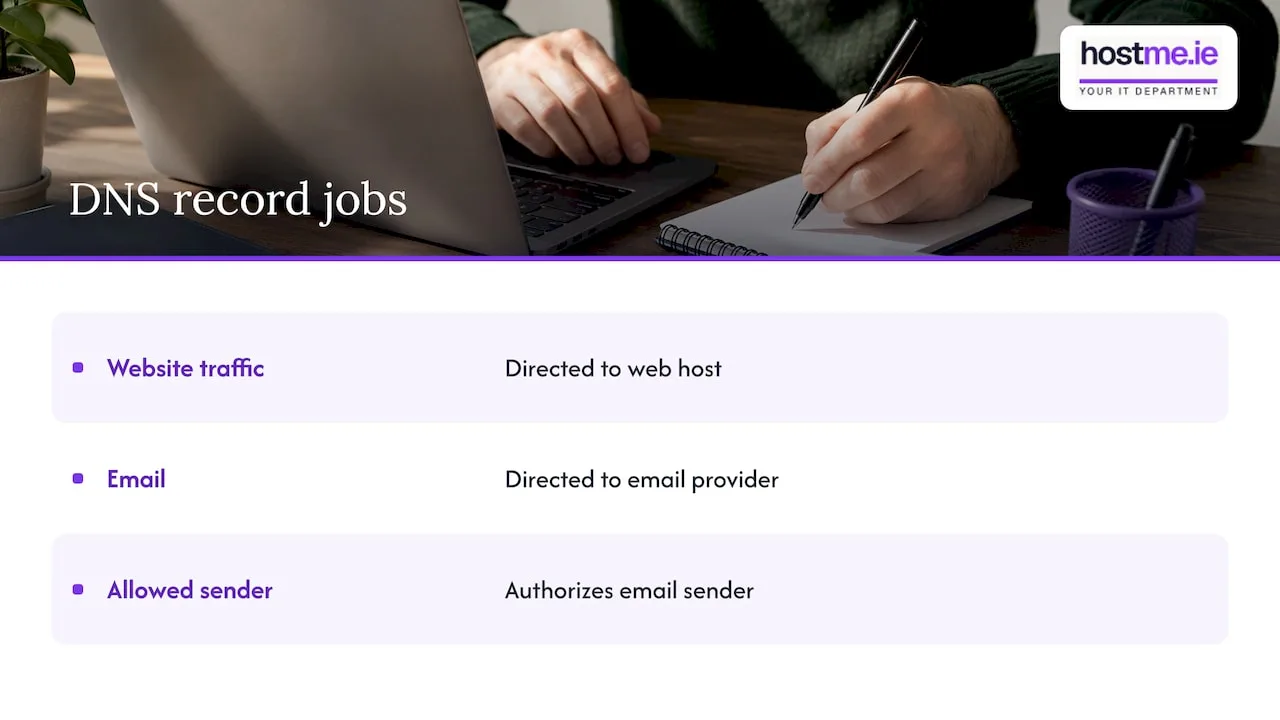
Think of it as a list with one line per job. One line says “website traffic goes here”. Another says “email goes there”. Another says “this sender is allowed”. You do not need to memorise the technical detail. You do need to know which line does which job, so you can spot a problem and avoid breaking something that works.
The record types you will meet
Most small business domains use only a handful of record types. Here is what each does and where you are likely to see it.
| Record | What it does | Typical small business use |
|---|---|---|
| A | Points a name to an IPv4 address | Your website on its hosting server |
| AAAA | Points a name to an IPv6 address | The same job as A, on the newer address format |
| CNAME | Makes one name an alias of another name | www pointing to your main domain, or a service such as a booking tool |
| MX | Says which mail servers receive email for the domain | Microsoft 365, Google Workspace or your hosting mail |
| TXT | Holds text used for verification and email security | SPF, DKIM, DMARC and domain ownership checks |
| NS | Names the servers that hold your DNS records | Set at your registrar or DNS host |
| SOA | Holds administrative details about the zone | Created automatically, rarely edited |
The descriptions of A, AAAA, CNAME, MX, TXT, NS and SOA follow the standard definitions set out in Cloudflare’s DNS records guide.
A and AAAA records: where your website lives
An A record connects your domain, or a subdomain such as shop.yourbusiness.ie, to the IP address of the server hosting that site. An AAAA record does the same for IPv6 addresses. If your web host gives you an IP address to use, you enter it in an A record. If they also give you an IPv6 address, you add an AAAA record.
The common mistake is leaving an old A record in place after moving hosts. The old record keeps sending visitors to the previous server, and the site looks half moved.
CNAME records: aliases
A CNAME says “this name is really that other name”. A typical example is www.yourbusiness.ie pointing to yourbusiness.ie. Third-party services such as email marketing or booking tools often ask you to add a CNAME so they can serve content under your own domain. Use exactly the name and target the service gives you, including any dots.
MX records: where your email goes
MX records decide which servers accept email sent to your domain. Microsoft notes that the right MX record is what sends your email to Microsoft 365 rather than somewhere else. If your MX records still point to an old provider after you move to a new one, new mail keeps landing in the old mailbox, and you may not notice for days.
MX records also carry a priority number. Lower numbers are tried first. Your email provider will tell you the exact values. Do not guess them.
TXT records: proof and protection
TXT records store text. Two of their jobs matter most to a small business.
- Ownership checks. When you add a domain to Microsoft 365 or Google Workspace, you are asked to add a TXT record to prove the domain is yours.
- Email authentication. SPF, DKIM and DMARC records help receiving mail servers decide whether a message really came from you. Without them, your invoices and quotes are more likely to land in spam.
Microsoft states that there is no admin portal in Microsoft 365 for SPF. You create the SPF TXT record at your registrar or DNS host, which is often the same company. That is a good example of why knowing where your DNS is hosted matters.
A domain should have one SPF record. If you use several services that send email for you, such as Microsoft 365, an invoicing tool and a newsletter service, they all go into that single record rather than into separate ones.
NS and SOA records: who is in charge
NS records name the nameservers, which are the servers that hold your zone and answer questions about your domain. SOA records hold administrative details about the zone and are usually created for you. You will rarely touch either, but NS records matter a great deal when you move DNS from one provider to another, covered below.
How to find your DNS records
Your records are not stored in your website or in your email account. They live with whoever hosts your DNS. For most small businesses that is one of three places:
- your domain registrar, where you bought or renew the domain
- your web hosting company’s control panel or client area
- a separate DNS service you or a previous web designer set up
Microsoft’s guidance is to sign in to the account with your registrar or DNS hosting company, where you can view and edit the zone. Look for a menu called DNS, DNS zone, DNS management or Advanced DNS.
The “wrong place” problem
The most common frustration we see described is this: someone edits records in one control panel, nothing changes, and they assume DNS is broken. Often the domain’s nameservers point elsewhere, so the panel being edited is not the live one. Your nameservers decide which provider’s records the world sees. Records in any other provider’s panel are an inactive copy.
To check, look at the nameservers listed against your domain at your registrar. Then edit the records at the provider those nameservers belong to.
If you cannot recall who set up your domain or where the login went, our domain registration and transfers page explains how we handle domains, and our hosting and domains knowledge base covers common tasks for domains managed with us.
Before you change anything
A few minutes of preparation prevents most DNS accidents.
- Write down what is there. Take screenshots of the whole record list, or export the zone file if your provider offers it. If something breaks, you can put it back.
- Confirm you are in the live DNS. Check the nameservers as described above.
- Use the provider’s values. Copy records from your email or website provider’s own setup page, not from a generic example online. Hostnames and priorities differ between services.
- Change one thing at a time. If you change the website record and the email records together and something fails, you will not know which change caused it.
- Pick a quiet time. Do email changes outside your busiest hours, in case anything needs a second attempt.
- Do not delete what you do not recognise. An unfamiliar TXT or CNAME record may belong to your booking system, your accountant’s software or a verification you set up years ago.
If you are moving email, our business email setup and migration checklist lists the order of steps, including the DNS changes.
DNS propagation: how long does a change take?
When you change a record, nothing is “pushed” around the internet. Instead, servers that looked up your old record keep a copy for a set time, and they only ask again once that time runs out. That copy time is the TTL (Time To Live), measured in seconds. As CaptainDNS explains, there is no real propagation mechanism: resolver caches expire according to the TTL.
In practice, that means:
- Some visitors see your change within minutes or hours, while others still see the old version for a while.
- A lower TTL on the old record means caches expire sooner. A TTL of 3600 means up to an hour. A TTL of 86400 means up to a day.
- Allow up to 24 hours for ordinary record changes as a sensible planning figure. Changing nameservers can take longer, because delegation details are cached separately.
Making a planned change smoother
If you know a change is coming, such as moving your website to a new host, you can lower the TTL on the existing record a day or two beforehand. After the move, you can set it back to a normal value. This does not speed up an unplanned change that has already been made, because caches already hold the old TTL.
Avoid repeatedly editing the same record while you wait. Each edit gives the world another version to cache, so it can drag out the confusion.
How to check whether a change has taken effect
Free DNS lookup tools such as dnschecker.org let you query a record from different locations. If some locations show the new value and others the old, the change is still spreading. Your own device may also hold an old answer for a short time, so try another device on mobile data before concluding something is wrong.
If the new value has not appeared anywhere after a full day, the likelier cause is a configuration issue: a typo, an extra dot, the wrong record type, or edits made at a provider that is not the live DNS. Compare what you entered against what your provider supplied.
Moving nameservers without losing email
Switching nameservers hands your entire zone to a new provider. The new provider’s zone must contain every record you need before you switch, or whatever is missing stops working the moment caches update. Websites usually get all the attention, but the forgotten items are almost always the MX, SPF, DKIM and verification TXT records.
The approach is the same whatever the service. A booking system migration is a good example of why you list what depends on your domain and make sure each piece is recreated before you switch anything over. For DNS, that means:
- Export or copy the full record list from the current provider.
- Recreate every record at the new provider, checking values one by one.
- Compare the two lists side by side.
- Only then change the nameservers at your registrar.
- Keep the old zone available until you have confirmed that website, email sending and email receiving all work.
Common DNS mistakes in small businesses
- Two SPF records. Mail servers may reject both. Merge them into one.
- Old MX records left behind. Mail can arrive at an abandoned mailbox.
- Deleting unfamiliar records. The record may be what keeps a third-party service working.
- Typing the full domain into a name field. Many panels add your domain automatically, so
www.yourbusiness.iebecomeswww.yourbusiness.ie.yourbusiness.ie. - Letting the domain lapse. If the domain expires, every record stops working, including email.
- Nobody knows the login. Registrar accounts set up by a former web designer or a relative are a frequent cause of delays.
Our perspective
For most small businesses, DNS is not something you want to learn under pressure. It sits quietly in the background until the day a website moves, email changes provider or a new invoicing tool needs a verification record. Then one small entry decides whether customers can find you and whether your messages arrive.
We think the right approach is calm and methodical: record what exists, change one thing at a time, and agree the scope before any work begins. That is how hostme.ie works as one person to contact for business IT, covering domains, web hosting, business email and Microsoft 365 set-up in one place, so your DNS records, mailboxes and website are not scattered between three suppliers who each assume another one is responsible.
We can work remotely, with on-site work where agreed. We would rather spend ten minutes confirming the live nameservers and writing down your current records than have you guess and find out the hard way.
hostme.ie
Need a hand with your DNS records?
If you would rather not edit DNS yourself, hostme.ie can look after your domains, business email and web hosting for you. We agree the scope before any work starts, so you know what is being changed and why. Get in touch through our contact page and tell us what you are trying to move or fix.
FAQ
What is a DNS resource record?
It is a single entry in your domain’s DNS zone that gives one piece of information, such as the server for your website or the mail provider for your email. Together, the records connect your domain to the services you use.
How can I find the DNS records for my domain?
Sign in to the account at your registrar or DNS host and open the DNS or zone management section. Check your nameservers first, so you know you are looking at the live records and not an unused copy.
How long does DNS propagation take?
It depends mainly on the TTL of the old record. Many changes show within a few hours, and it is sensible to allow up to 24 hours. Nameserver changes can take longer.
Which DNS records does a small business need?
At minimum, a record that points your domain to your website, usually A and CNAME, and MX records for email. Add the SPF, DKIM and DMARC TXT records your email provider recommends, so your messages are trusted.
Can a wrong DNS record stop my email?
Yes. If the MX records do not point to the provider that holds your mailboxes, incoming mail goes elsewhere. Check them against your provider’s instructions after any change and ask for help if anything looks different from what you expected.
Sources
- DNS basics, Microsoft 365 admin, Microsoft Learn
- Set up SPF for your Microsoft 365 domain, Microsoft Learn
- DNS records, Cloudflare Learning Center
- DNS Propagation Time: How Long Does It Really Take?, CaptainDNS