Teams Guest Access: Settings and Safe Reviews
Check Teams, Entra, Microsoft 365 Groups and SharePoint guest access, invitation permissions and review actions before changing your tenant.

Teams guest access gives an external person a guest account in your directory and access to the teams they join. Before changing settings, confirm who needs access and what they should see. Check Teams, Microsoft Entra, Microsoft 365 Groups and SharePoint together; the Teams switch alone does not establish working access.
TL;DR:
- Check Teams, Microsoft Entra, Microsoft 365 Groups and SharePoint settings together.
- Guest invitations require staff to accept welcome emails and sign in with the correct account to avoid tenant-switching issues.
- Give guest access a named owner and a review date. An inactivity report is a review signal, not an automatic reason to delete an account.
- Using shared channels instead of guest access can reduce tenant switching but requires mutual admin coordination and trust from both organizations.
- Agree who may invite guests, then align team ownership with Entra invitation permissions; these are separate controls.
Table of Contents
- How to enable guest access: exact admin steps and order of dependencies
- Invite flow and guest experience: acceptance, tenant switching and practical tips
- Key admin settings to review and their security effect
- Security and governance: access reviews and removing stale guest accounts
- When to use shared channels (Teams Connect) instead of guest access
- Common problems and quick fixes: diagnostic checklist for admins
- How hostme.ie can help: practical support options for small businesses
- Author perspective: pragmatic defaults for small organisations
- Book a guest access review with hostme.ie
- FAQ
- Sources
How to enable guest access: exact admin steps and order of dependencies
Microsoft’s guest-access overview explains the dependencies across Teams, Microsoft Entra, Microsoft 365 Groups and SharePoint. Guest access creates a B2B collaboration account; Teams external access supports chat and calls without adding someone to a team as a guest.
Work through these steps in order:
- In Entra external collaboration settings, check invitation permissions and permitted domains. Review applicable cross-tenant access and sign-in policies if access is blocked. Do not relax tenant-wide controls just to bypass an error.
- In the Teams admin centre, go to Users > Guest access and switch the setting to On, then configure calling, meeting and messaging options to match your risk appetite.
- In the Microsoft 365 admin centre, open Settings > Org settings > Microsoft 365 Groups. Check both permission for group owners to add guests and permission for guest members to access group content.
- Check SharePoint sharing settings at the organisation and the team’s site. Permit the authenticated guest access you need; the site cannot be more permissive than the organisation. “New and existing guests” supports new invitations; “Existing guests” limits sharing to guests already in the directory. “Anyone” links are not required for Teams guest collaboration.
- Wait for propagation, since turning guest access on or off can take up to 24 hours to apply across the tenant, and if it still isn’t working after that, re-check each layer rather than assuming the whole feature is broken.
A restriction at any layer can block collaboration. Check the specific error, the guest account and the intended team before changing tenant-wide settings. This is a configuration review, not a guarantee that changing four switches fixes every sign-in problem.
Invite flow and guest experience: acceptance, tenant switching and practical tips
Adding a guest is done from within the Team itself: open Manage team, select Add member, and type the guest’s email address, then edit their display name if you want it to be clearer than the raw address. Microsoft notes that a guest’s account becomes usable only once they’ve been added to at least one team, and Teams marks them with a visible “(Guest)” label afterwards.
Prepare the guest for the invitation and identity checks:
- They’ll receive a welcome email and must accept it before anything appears in their own Teams client.
- Acceptance can take a few minutes to show up, so don’t assume a failed invite too quickly.
- Confirm the invited email address and intended account, especially when the person has several Microsoft accounts. Record any redemption or sign-in error before retrying.
- After redemption, check the member list and have the guest test the intended channel and a permitted file. Presence in the member list alone does not prove working sign-in or file access.
Key admin settings to review and their security effect
A handful of settings do most of the work in keeping guest access useful without being risky.
- Teams guest settings for calls, meetings and messaging (private calling, video, screen sharing, Giphy content) each widen what a guest can do, so the Teams admin centre exposes them individually rather than as one blanket switch.
- Microsoft Entra external collaboration settings control who can send invitations in the first place, including the “members can invite” option, which is worth restricting to a small group of trusted staff.
- SharePoint link types matter just as much as the Teams toggle: “Anyone” links are convenient but anonymous, while “Specific people” links require sign-in and tie access to a named guest account.
- Team ownership and tenant invitation policy must agree. Being a team owner does not automatically grant every Entra invitation permission.
Practical check: If invitations are restricted to selected administrative roles, authorised staff may need the Guest Inviter role. Approve the people and scope first; do not assume there is a tenant setting that simply selects “team owners only”.
Security and governance: access reviews and removing stale guest accounts
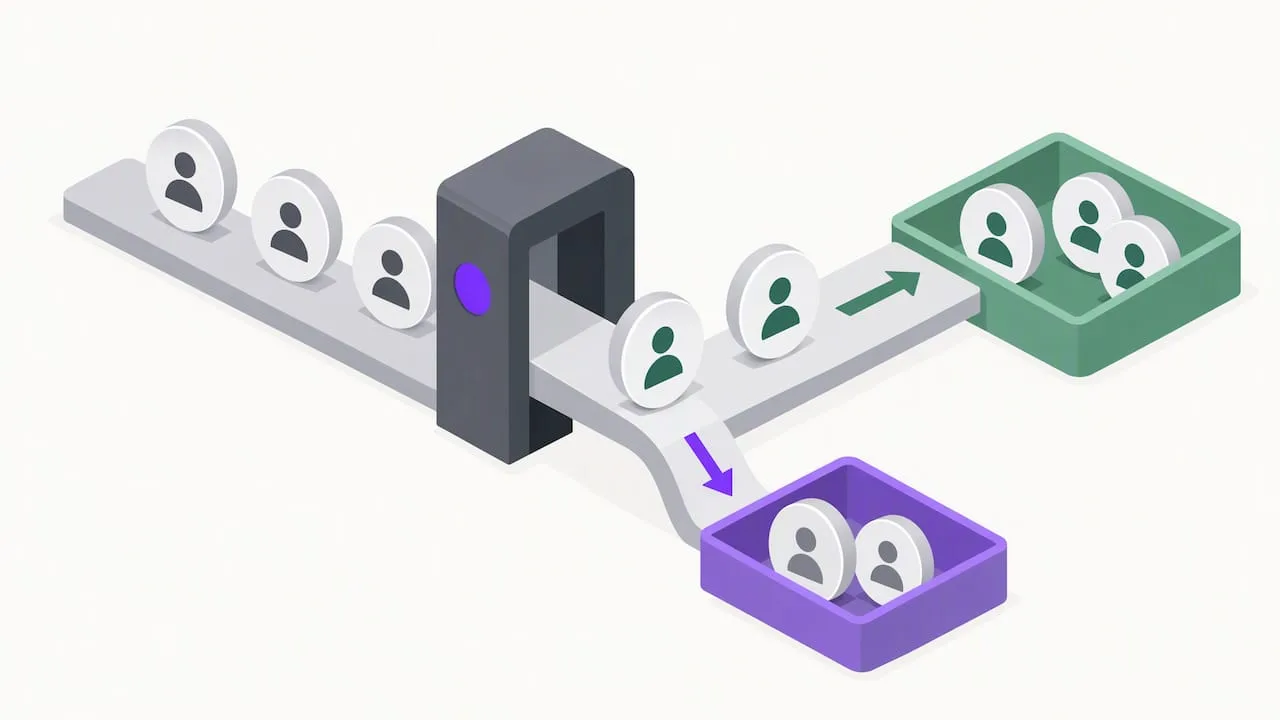
Review access when a project ends and at an agreed interval. Microsoft’s inactive-guest report uses 90 days of inactivity, while access-review inactivity settings are configurable. Neither proves that an account is no longer needed. Automated Entra access reviews require appropriate Microsoft Entra ID P2 or ID Governance licensing; check the particular feature and guest billing model before offering automation. A manual owner review remains an option.
For a small business, a workable routine looks like this:
- Run a review every quarter rather than relying on ad-hoc memory of who still needs access.
- Use inactivity as supporting evidence and ask the responsible owner whether the guest still needs access; check other teams, applications and projects before removing the directory account.
- Decide the non-response and removal actions explicitly before enabling auto-apply. Removing membership affects the reviewed resource. Blocking a denied guest tenant-wide for 30 days and then deleting the account is a different, broader option. Do not apply it simply because a reviewer failed to respond. See Microsoft’s access-review settings.
Record a purpose, accountable owner and next review date for each collaboration. Review the evidence before revoking access.
When to use shared channels (Teams Connect) instead of guest access
Shared channels let external participants collaborate from their home tenant using B2B Direct Connect. Both organisations must configure the required cross-tenant permissions. This is a separate model: guest accounts cannot be added to shared channels.
- Guest collaboration does not require the partner to configure B2B Direct Connect, but applicable identity and cross-tenant policies can still affect sign-in. Your organisation remains responsible for guest access and lifecycle checks.
- Shared channels remove the sign-in switching problem but require genuine mutual trust and coordinated admin work on both tenants.
- As a rule of thumb: use guest access for short-term or one-off collaborators, and reserve shared channels for long-term partners where the extra setup is worth doing once.
Common problems and quick fixes: diagnostic checklist for admins
Use the actual error and affected resource to narrow the investigation:
- For a file-access failure, inspect the link, its permissions and any link or guest-access expiry policy. “Specific people” links require named authentication, but they do not override site restrictions, revoked permission or guest expiry.
- Check whether an access review removed membership or blocked the account. Review the configured decision, non-response action and audit evidence before deciding whether that outcome was intended.
- Recheck team membership, Entra restrictions and the SharePoint organisation/site settings. Capture the error message and relevant sign-in evidence rather than assuming there is no visible error.
- For a private channel, the guest must belong to the parent team and the channel. Have the private-channel owner manage membership in Teams. The channel site’s owner/member groups follow channel membership; do not repair them by independently editing those SharePoint groups.
How hostme.ie can help: practical support options for small businesses
We can review the intended collaboration, Teams and Entra controls, Microsoft 365 Groups and SharePoint settings, then scope any configuration changes with the account owner.
- Where licensing and agreed policies support it, we can configure recurring access reviews. Otherwise, we can help establish a manual review. Removal actions and any wider security changes need an agreed scope.
- We run short staff training sessions so invitations and file sharing follow safe habits from day one, in the same practical style as our onboarding checklist.
- You can reach us directly through our IT support page or browse our wider services list for related Microsoft 365 work.
Author perspective: pragmatic defaults for small organisations
Our practical starting point is a named collaboration owner, authenticated “Specific people” links where appropriate, a clear access purpose and a review date. Align team ownership with the tenant’s invitation rules. Choose shared channels only after checking the partner’s cross-tenant configuration and whether that collaboration model fits.
hostme.ie
Book a guest access review with hostme.ie
Getting guest access right means checking the identity and collaboration settings together, agreeing a review process and testing the intended access. Ask us to scope a review of your current setup.
- Message us on WhatsApp for a quick chat about your current setup.
- Book a remote session through our IT support page to review your tenant’s guest settings properly.
- Ask about pairing this with our Security & SSL service if you want a wider check of your sharing and access controls.
FAQ
How do I access Microsoft Teams as a guest?
You accept the welcome email invitation sent after a team owner adds you, then sign in with the Microsoft work, school or personal account the invite was sent to. Once accepted, the team appears in your Teams client and you’re labelled “(Guest)” next to your name.
What are the limitations of guest access in Teams?
Guests can be restricted from calling, meeting features, screen sharing and certain messaging content depending on how the admin configured the Teams guest settings. They also need to be added to at least one team before any guest features become available to them.
What are the differences between a guest and a member in Microsoft Teams?
A guest is an external B2B collaboration user in your directory. Team membership controls access to that team; the guest may also have other separately granted access. A member is an organisational account, but membership does not automatically grant unrestricted access throughout the tenant.
How to enable guest users?
Review Users > Guest access in Teams, Entra invitation/domain and applicable sign-in restrictions, both Microsoft 365 Groups guest settings, and SharePoint organisation/site sharing. Teams guest-setting changes can take up to 24 hours to apply. Do not change security controls without the account owner’s approval.
Sources
Use the linked Microsoft guidance for Teams guest access, Entra invitations, SharePoint sharing, private channels and access-review settings. Review the applicable licensing and policies before making changes.
- Guest access in Microsoft Teams – Microsoft Learn