IMAP vs Exchange: Business Email and OAuth Migration
Compare IMAP and Exchange for small businesses. Learn why Microsoft’s move to OAuth matters, how migrations go wrong, and what to check before you switch.

For most small businesses that just need reliable email across a laptop and phone, IMAP (often through hosted IMAP on a business domain) does the job. Choose Exchange when you need shared calendars, shared contacts or deep collaboration features inside Outlook. The decision also hinges on authentication: Microsoft has moved away from Basic authentication for IMAP, so security setup matters as much as the protocol itself.
TL;DR:
- IMAP synchronises email across devices. Shared calendars, contacts and delegation depend on the email service and client; Exchange provides integrated team features.
- Microsoft’s deprecation of Basic authentication for IMAP requires verifying client support for OAuth and disabling legacy authentication to enhance security.
- Migration from IMAP to Exchange involves separate steps for email, contacts, and calendar data, with attention to server settings and folder name consistency.
- Choose the email service by collaboration, administration, client compatibility and authentication needs. Device count alone does not determine whether IMAP or Exchange is suitable.
- Implementing modern security protocols and regular backups is more critical than selecting the protocol itself for long-term reliability.
Table of Contents
- IMAP vs Exchange: a quick comparison
- How IMAP and Exchange actually work
- Security and authentication: why Basic auth matters here
- Which one fits your business?
- Migrating between IMAP and Exchange: what to check first
- How we help with email setup and migrations
- Our take: the protocol matters less than the setup
- Need a hand with business email or a migration?
- FAQ
- Sources
IMAP vs Exchange: a quick comparison
Before you commit to either option, it helps to see where they genuinely differ rather than relying on brand reputation.
- Synchronisation behaviour: IMAP keeps mail state (read, flagged, deleted) on the server and syncs folders across devices; Exchange does the same but extends that server state to calendars and contacts too.
- Calendar and contacts: standard and built-in with Exchange; not supported by IMAP itself, according to Microsoft’s own IMAP4 documentation.
- Security and authentication: both can use modern, encrypted connections, but Exchange integrates more naturally with OAuth across Microsoft 365 apps, while IMAP clients vary in OAuth support.
- Offline access: Classic Outlook for Windows can keep an Exchange mailbox cache, with the amount of mail controlled by its offline settings. Cached Exchange Mode is not available in new Outlook. IMAP caching also depends on the client; check offline availability before relying on either.
- Client compatibility and overhead: IMAP works with almost any email client and needs little admin; Exchange needs more setup but centralises management for a growing team.
For a sole trader checking mail on one phone and one laptop, IMAP is usually enough. For a team that shares calendars and meeting rooms, Exchange earns its overhead.
How IMAP and Exchange actually work
IMAP stores your mailbox on the server rather than on your device, keeping folders, flags (seen, answered, flagged) and message state consistent no matter which device you check mail from, a model the IMAP protocol reference describes as designed for multi-device access. Sending still goes through SMTP, and IMAP connections typically run encrypted on port 993, with SMTP sending on port 587.
Exchange does more. Outlook talks to Exchange using MAPI over HTTP, mobile devices often use ActiveSync, and developers or automated tools can use Exchange Web Services or Microsoft Graph. These extra protocols are what let Exchange store calendars, contacts and tasks server-side rather than leaving them to the client, as Microsoft’s POP3 and IMAP4 documentation notes when contrasting IMAP4’s limited scope with Exchange’s richer feature set.
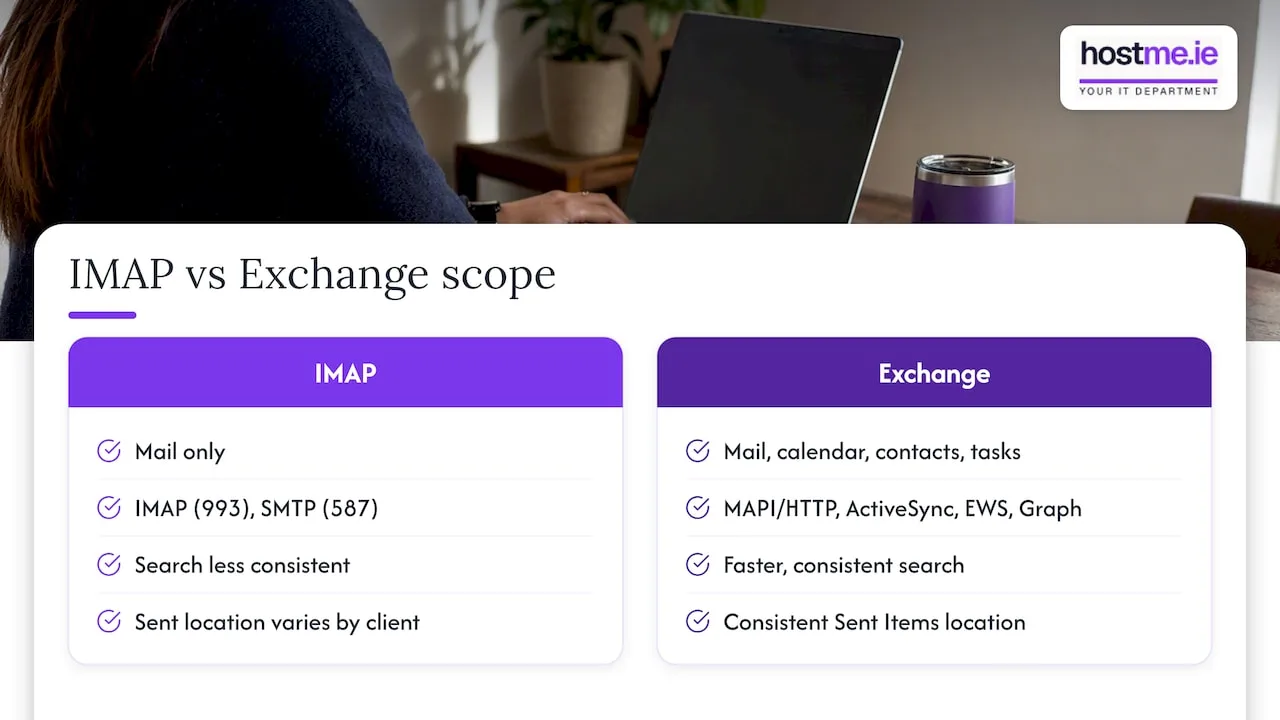
In daily use, this shows up in small but real ways. Searching across a whole mailbox tends to be faster and more consistent on Exchange. Where your Sent Items land can differ by client with IMAP, which occasionally confuses staff moving between devices. Shared mailboxes and fine-grained administrative control, useful once you have more than a couple of people, are native to Exchange and awkward to replicate with plain IMAP.
Security and authentication: why Basic auth matters here
Microsoft has deprecated Basic authentication for IMAP and POP in Exchange Online, requiring a move to OAuth (Modern Authentication) instead, according to Microsoft’s deprecation notice. This change is a security measure aimed at reducing large-scale automated credential attacks such as password spraying, not a routine feature update, so it needs planning rather than being left until something breaks.
The complication for small businesses is that client support for OAuth on IMAP, POP and SMTP connections varies. Microsoft’s own guidance on authenticating IMAP, POP or SMTP with OAuth notes that application developers must implement the OAuth flow themselves, and Outlook clients typically favour MAPI/HTTP or EWS for Exchange accounts rather than generic IMAP profiles.
Practical steps worth taking now:
- Check which email clients your staff use and confirm they support OAuth rather than Basic authentication.
- Review enabled mailbox protocols and authentication policies. OAuth support in the client and permitted IMAP access on the mailbox both need checking.
- Avoid leaving legacy authentication switched on “just in case”: it is the exact gap attackers target.
Which one fits your business?
Match your setup to your actual needs rather than to whichever option sounds more professional.
- List what you genuinely need: shared calendars, shared contacts, delegated mailbox access, or simply reliable mail on a phone and laptop.
- Check features across devices: both options can synchronise email across several devices. Check shared calendars, delegation, contacts and client support separately; those requirements matter more than device count.
- Check the actual licence and setup costs: confirm whether your Microsoft 365 subscription includes Exchange Online, and allow separately for migration, support and administration. Some subscriptions include applications without hosted business email.
- Decide how much central administration you want: Exchange provides mailbox administration, permissions and retention controls. IMAP itself is a mail-access protocol; administration and retention depend on the hosting service, rather than being determined by IMAP.
- Factor in compliance and backups: if you need provable retention policies, Exchange’s server-side tools make that easier to demonstrate.
As a worked example: a sole trader with one laptop and one phone and no shared calendar needs rarely gains anything from Exchange’s extra complexity. A five-person team juggling shared meeting rooms is a different story entirely.
Pro Tip: If you’re unsure, start by listing every tool and device that touches your business inbox: the answer to IMAP or Exchange usually becomes obvious once that list exists.
Migrating between IMAP and Exchange: what to check first
Moving mailboxes is rarely as simple as changing a setting, so plan for the gaps.
- Remember that an IMAP migration moves mail and folders only; calendars and contacts need separate handling, either through export and import or through Exchange-specific migration tools.
- Collect your source server’s settings before you start: server name, encryption method and port, since Microsoft 365 IMAP migrations require the IMAP SSL port (993) and correct encryption settings, as set out in Microsoft’s IMAP migration guidance.
- Test with one mailbox first rather than migrating everyone at once.
- Watch for mismatched folder names between systems and for Outlook’s local .ost cache causing confusion about what has and has not actually moved.
- Expect authentication failures if Basic auth has already been switched off on the source or destination: this is one of the most common migration pitfalls right now.
How we help with email setup and migrations
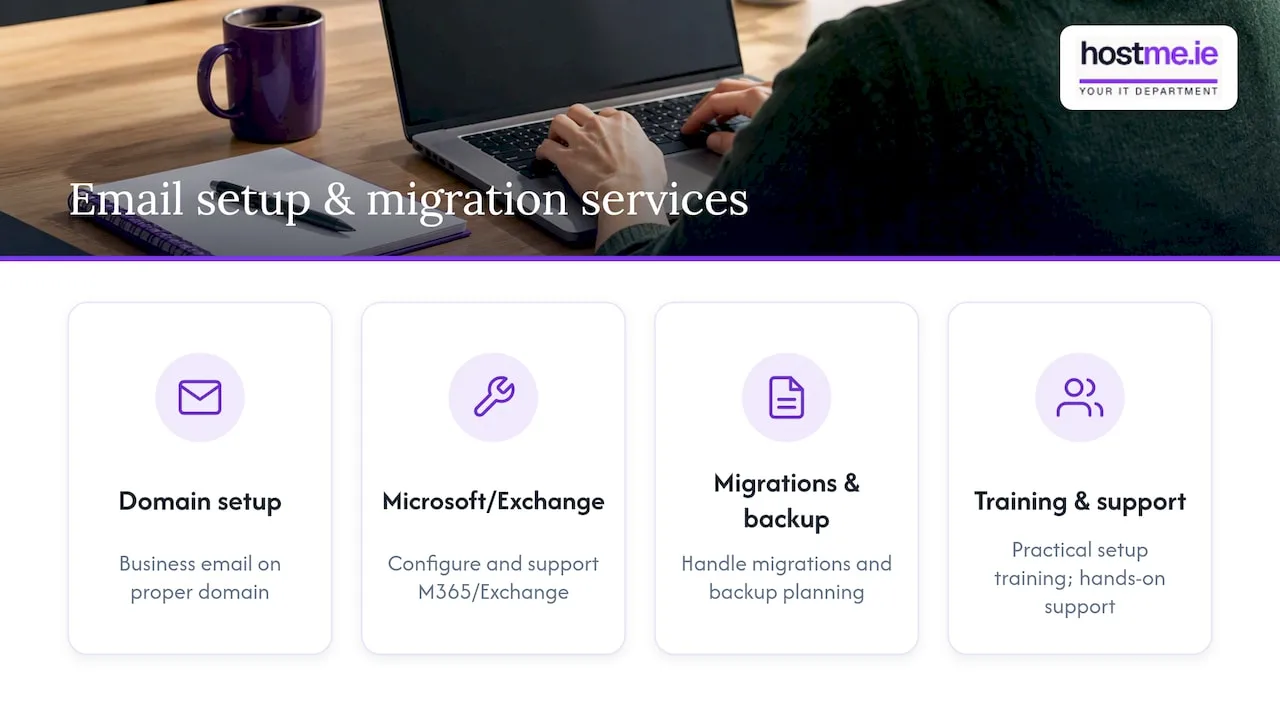
We set up business email on a proper domain rather than ISP mailboxes, configure and support Microsoft 365 and Exchange, and handle migrations between systems along with the backup planning that should go with them. For businesses training staff on new tools, we also run practical setup and training sessions. When a tenant has several mailboxes, OAuth compatibility questions, or a full migration ahead, that’s the point to bring in hands-on support rather than guessing at settings. Our IT support page covers the broader scope of what we handle day to day.
Our take: the protocol matters less than the setup
Choosing IMAP or Exchange matters less than keeping authentication modern and backups current. Whichever you pick, plan migrations for quiet periods and treat security configuration as the real decision, not the protocol label.
hostme.ie
Need a hand with business email or a migration?
We handle business email setup, Microsoft 365 configuration and mailbox migrations for sole traders and small teams, including the authentication changes covered above. If your current setup is a mix of personal and ISP mailboxes, we can also show you why moving off ISP email tends to pay off. Message us on WhatsApp and we’ll talk through what your business actually needs.
FAQ
What is an Exchange account?
An Exchange account is a mailbox hosted on Microsoft’s Exchange server, which stores mail, calendars, contacts and tasks together rather than just email. It’s the account type behind most Microsoft 365 business mailboxes and gives Outlook its full set of collaboration features.
Is IMAP the same as SMTP?
No, they do different jobs: IMAP retrieves and syncs mail you’ve already received, while SMTP handles sending outgoing mail. Most email setups use both together, with IMAP for incoming mail and SMTP for outgoing, as described in the IMAP protocol overview.
Is Microsoft Exchange discontinued?
No, Microsoft Exchange is not discontinued; it continues as the mailbox platform behind Exchange Online and Microsoft 365. What has changed is authentication: Basic authentication for IMAP and POP has been deprecated by Microsoft, pushing organisations toward OAuth instead.
How do I enable IMAP settings in Microsoft Exchange?
IMAP access in Exchange Online needs to be enabled on the mailbox and connected using the correct server name, encryption method and port, with IMAP SSL typically using port 993, as set out in Microsoft’s IMAP connection guidance. Basic authentication has been retired for IMAP and POP in Exchange Online. Confirm OAuth support and the account’s protocol settings; other IMAP providers have their own authentication policies.
Sources
- Microsoft: Cached Exchange Mode and offline settings
- Microsoft: Basic authentication retirement in Exchange Online
- POP3 and IMAP4 in Exchange Online | Microsoft Learn
- Imap