Guest Wi-Fi Setup and Isolation Checks for Small Businesses
Check guest Wi-Fi encryption, local access, shared devices and client isolation. Test business-device access before relying on a separate network name.
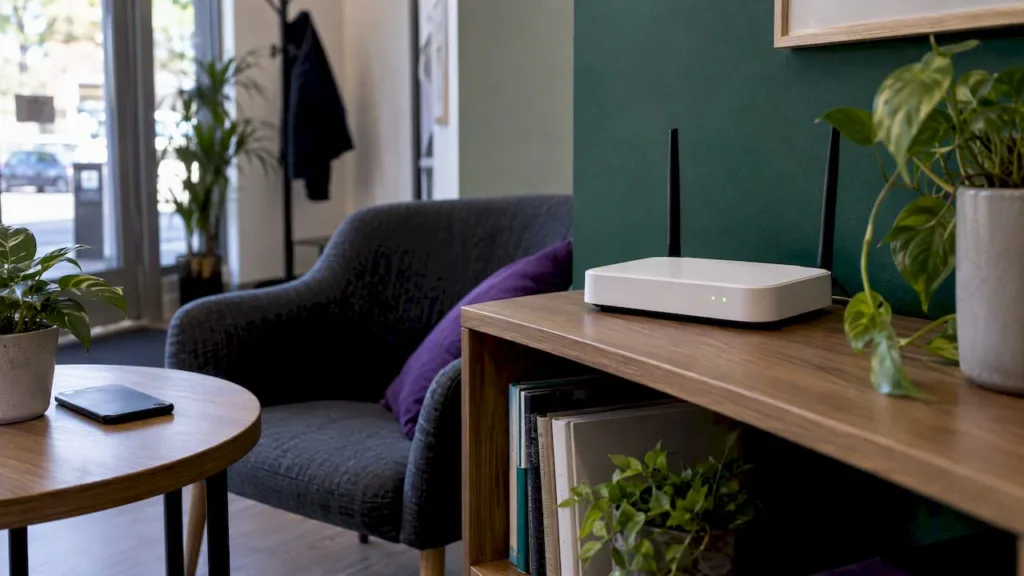
A guest Wi-Fi network can give visitors internet access while keeping business devices separate. The name alone does not establish isolation: check your router’s operating mode, local-access settings and the devices it deliberately shares. Use the steps below, then test access before relying on the setup.
TL;DR:
- Most routers let you enable a separate guest name and password through an admin page or app; test internet access and device isolation afterward.
- Choose WPA3, or WPA2 with AES when unavailable; avoid WEP and TKIP, and use a long, unique password unlike your main network password.
- Enable client isolation and block LAN access so guest devices cannot reach one another, office printers, shared files, or other internal equipment.
- Set bandwidth limits or connection time limits when visitors could disrupt work, and disable guest access when no one needs it.
- For busy public-facing premises, ask the responsible administrator whether a managed guest network or captive portal is appropriate. Design any access controls and logging deliberately.
Table of Contents
- What is a guest Wi-Fi network and how does it work?
- Why set up a guest network at all?
- How to set up a guest network step by step
- Secure configuration: encryption, passwords and firmware
- Managing guests and devices on your network
- Advanced options for higher-risk or business settings
- Our practical checklist and common fixes
- Our view: start simple, call in help when it gets complicated
- How we can help with setup, security and ongoing support
- FAQ
- Sources
What is a guest Wi-Fi network and how does it work?
A guest network offers visitors a separate Wi-Fi name and password. How it separates traffic depends on the router and its configuration. A different network name or IP range alone does not prove that guests cannot reach business devices.
Treat these as two checks: guest-to-business access and guest-to-guest access. A LAN-access control limits access to the business network; client isolation limits communication between wireless clients. Check the manufacturer’s instructions for your exact model, firmware and router or access-point mode.
- Use a guest name and password distinct from the business network.
- Disable guest access to business devices; check client isolation separately.
- Check operating mode and deliberately shared devices, then test the result.
Why set up a guest network at all?
Properly configured isolation reduces exposure of business devices to visitors’ equipment. It complements device updates, access controls and backups; it does not guarantee protection from malware or data leaks.
- Keeps business files, printers and internal devices off-limits to visitors.
- Reduces the chance of a compromised guest device infecting your main network.
- Some models offer guest bandwidth or session controls; check yours before relying on them.
How to set up a guest network step by step
Most routers and ISP apps follow a similar pattern, though exact wording differs by brand.
- Use the admin address or app documented for your own router or Irish ISP equipment. The default gateway may be 192.168.0.1 or 192.168.1.1, but do not assume that address or another country’s ISP app applies.
- Log in with your admin credentials, then find the wireless or guest network section.
- Switch guest Wi-Fi on and give it a distinct name (SSID), different from your main network.
- Set a strong, unique password separate from your main Wi-Fi password.
- Choose WPA3 if it is offered; otherwise pick WPA2 with AES encryption, and avoid WEP or TKIP.
- Disable guest access to your LAN or intranet. Enable client isolation if supported, and check that access-point mode or mesh settings do not allow local access.
- Save and test with an authorised guest device. Confirm internet access, then check that it cannot access a known business printer, file share or device admin page. Test guest-to-guest isolation separately. A failed ping alone is not proof of isolation.
Pro Tip: Write the guest password on a card by the door or in a quick QR code; it saves you repeating it to every visitor and keeps your main password private.
For Google Nest Wifi or Google Wifi, the Google Home instructions let you select shared devices. Do not share office printers or other business equipment with guests unless that access is deliberate and appropriate.
Secure configuration: encryption, passwords and firmware
The settings above work, but a few details decide whether your guest network is actually secure or just separate in name.
- Use WPA3 where your router supports it; it is currently the strongest consumer Wi-Fi encryption available, with WPA2-AES as the recommended fallback.
- Never select WEP or TKIP: both are outdated and easy to break.
- Use a long, random guest password, or set time-limited access codes for events and short visits.
- Consider a captive portal (a login page guests see before getting online) if you need to log who connects or control how long access lasts.
- Keep router firmware updated and change the default admin username and password, since outdated firmware and default logins are two of the most common ways routers get compromised.
Check whether your router supports automatic firmware updates and enable them where suitable. Keep an accountable owner and review the manufacturer’s update instructions; notification behaviour varies.
Features vary by model and operating mode. For example, TP-Link Deco’s instructions distinguish automatic main-network separation in router mode from an Allow Local Access control in access-point mode. Bandwidth and duration options are not present on every model.
Managing guests and devices on your network
Once the guest network is live, a little ongoing management keeps it running smoothly.
- Use your router’s QoS or bandwidth control settings to cap guest speeds, so one device cannot hog the connection.
- Keep AP/client isolation switched on so guest devices cannot see or talk to each other.
- Place untrusted smart devices, like a visitor’s fitness tracker or a smart speaker you are not sure about, on the guest network rather than your main one, since IoT devices often carry weaker built-in security and isolating them limits what a compromised device can reach.
- Watch for signs of abuse, such as unusually slow speeds or a guest network active when no one is visiting, and disable it when not in use.
Advanced options for higher-risk or business settings
A standard guest network covers most homes and small offices, but some situations call for more.
- A business installation may need a guest VLAN and firewall rules checked across switches and access points. Have the responsible administrator confirm the whole path.
- A captive portal manages sign-in or access codes. It does not replace Wi-Fi encryption or network isolation. Decide whether any logging is necessary and minimise personal data.
- A router VPN, if deliberately used, does not replace guest-to-business isolation or encrypt every application end to end. Do not add one simply to create guest access.
- For premises with persistent connection problems or several access points, discuss a scoped investigation with the person responsible for the network.
Our practical checklist and common fixes
Before you start, confirm you have router admin access, check the current firmware version, and note down existing SSIDs so you do not duplicate one.
- Enable the guest SSID and give it a name separate from your main network.
- Set WPA3, or WPA2-AES if WPA3 is not available.
- Disable LAN or intranet access for the guest network.
- Turn on AP/client isolation.
- Where supported, set a suitable bandwidth limit and test normal business use. Recheck isolation after a configuration or firmware change.
Forgotten guest password: change it in the documented admin page or app. Slow guest Wi-Fi: review signal, connection load and any configured limits. Guests reaching business devices: review LAN access, shared devices and operating mode. For setup help, discuss your network with hostme.ie.
Our view: start simple, call in help when it gets complicated
A guest network takes a small amount of effort for a large security gain, and most routers make the basic setup straightforward. We recommend doing the DIY steps yourself first: separate SSID, strong encryption, isolation switched on. Where you need captive portals, VPN integration or persistent connection problems, that is when professional support earns its keep.
hostme.ie
How we can help with setup, security and ongoing support
If you want help reviewing the setup, start with our business IT support page. We can discuss the equipment, access and checks needed before agreeing the scope. Website SSL protects website connections; it does not configure or secure a guest Wi-Fi network. For general housekeeping, our DIY IT guide offers a separate starting point.
- Secure guest network configured with WPA3/WPA2-AES and isolation enabled.
- Firmware kept current and admin credentials changed from defaults.
- IoT and visitor devices separated from business systems.
When you would rather have someone handle it directly, message us on WhatsApp and we will sort out the details with you.
FAQ
Can I create a guest Wi-Fi network myself?
Yes, most home and small-office routers include a built-in guest network option in their admin settings or companion app. You typically just need to switch it on, name it and set a password, with no extra hardware required.
What is a guest Wi-Fi network?
A guest Wi-Fi network gives visitors a separate way to connect. Whether it blocks access to business devices depends on the router, operating mode, local-access rules and shared-device settings. Check those controls and test access; a separate name or subnet alone is not proof.
How do I make a guest network on my router?
Follow your model’s admin-page or app instructions. Set a distinct guest name and password, use supported WPA3 or WPA2-AES encryption, block local-network access and check client isolation separately. Test internet access and isolation before relying on the result.
How do I connect to a guest Wi-Fi network?
Select the guest network’s SSID from your device’s Wi-Fi list, just as you would any other network, then enter the password the host has given you. If a captive portal appears, you may need to accept terms or enter a code before you get online.
Sources
- TP-Link Deco guest network: router and access-point modes
- Google Home and Nest: guest network and shared devices
- Apple: recommended Wi-Fi security settings