File Server to SharePoint Migration: A Small Business Plan
How to move a file server or shared drive to SharePoint Online: assess, tidy, set up libraries, migrate with Microsoft's tools, then map access and train staff.

You can move a file server to SharePoint Online without a big-bang weekend. The safe route is five steps: decide what to keep, tidy it, build the sites and libraries, run a small pilot, then migrate in stages and show staff how to open their files. Microsoft’s own file share migration guide follows the same phases: planning, assessing and fixing content, preparing the destination, migrating, and onboarding users.
This guide is written for owner-operators and office managers in Irish small businesses who have a server, a NAS or a shared PC folder holding the company’s files and want to know what the move really involves.
TL;DR
- Do not copy everything. Decide what is still needed, then migrate that.
- Personal files go to OneDrive. Team files go to shared SharePoint libraries.
- Check permissions, blocked file types and long paths before you move anything, because the tools will flag them and some access rules will not carry across exactly.
- Run a pilot with one team first, then migrate in stages with the old share set to read-only.
- Most of the effort is in the planning and the staff handover, not the file copy.
Table of Contents
- What actually changes when files leave the server
- Step 1: Take stock of what you have
- Step 2: Decide where each type of file belongs
- Step 3: Check permissions, limits and licences
- Step 4: Choose your migration tool
- Step 5: Run a pilot, then migrate in stages
- Step 6: Map access and get staff working
- Step 7: Back up and secure the new setup
- What a good migration plan looks like
- Our view: why a scoped, staged move works for small businesses
- Need a hand with the move?
- FAQ
- Sources
What actually changes when files leave the server
A file server gives you drive letters, folders and permissions managed on one machine in your office. SharePoint Online stores files in sites and document libraries in Microsoft 365. Staff open them in a browser, in the Office apps, or through File Explorer using the OneDrive sync app.
That has three practical effects:
- Access from anywhere. No VPN is needed to reach a file from home or on site.
- Permissions work differently. You manage access to sites and libraries through Microsoft 365 groups, not through NTFS folder rules.
- The structure matters more. Very large, deeply nested folder trees do not suit SharePoint, so a straight copy often creates problems.
If you are unsure how SharePoint and OneDrive divide the work, our guide to SharePoint vs OneDrive for business covers it in plain terms.
Step 1: Take stock of what you have
Start with a list, not a tool. Write down:
- Every share, folder or drive that holds business files, and where it physically lives (server, NAS, a spare PC).
- Roughly how much data each holds.
- Who uses it, and who must not see it (payroll, HR, client records).
- Anything that depends on it: accounting software, scanners saving to a folder, old macros, Access databases.
Then look at the content itself. Microsoft advises assessing the source to work out whether content is redundant, out of date, or still relevant, before you migrate it. In a small business that usually means a lot of old project folders, duplicate copies and personal clutter that can be archived rather than moved.
A simple rule works well: if nobody has opened it in several years and no legal or tax rule makes you keep it, archive it to a separate backup copy and leave it out of the live move. Check retention periods for business records with your accountant before you delete anything.
Scan for problems early
The SharePoint Migration Tool (SPMT) can scan your source and report issues such as blocked file types, invalid characters in names and paths that are too long, as described in Microsoft’s guidance. Fixing these at source is quicker than chasing failed items afterwards.
Typical culprits in small offices:
- Folder names that repeat the same words six levels deep.
- File names with characters SharePoint does not accept.
- Old temporary files and database lock files that have no place in a document library.
Step 2: Decide where each type of file belongs
This is the decision that most affects how the new setup feels day to day.
Microsoft’s guidance is simple: files that belong to one person go to OneDrive, and files or folders meant for team use and collaboration go to a shared library.
| Type of content | Where it should go | Why |
|---|---|---|
| One person’s working files | That person’s OneDrive | Stays tied to the individual |
| Shared project or client folders | A SharePoint document library | Access controlled per team or site |
| Company-wide policies and templates | A read-mostly library for everyone | Easy to find, few editors |
| HR, payroll, finance | A separate restricted site | Keeps access tight |
| Old archive | Backup copy outside the live setup | Avoids clutter and sync load |
Keep the structure sensible
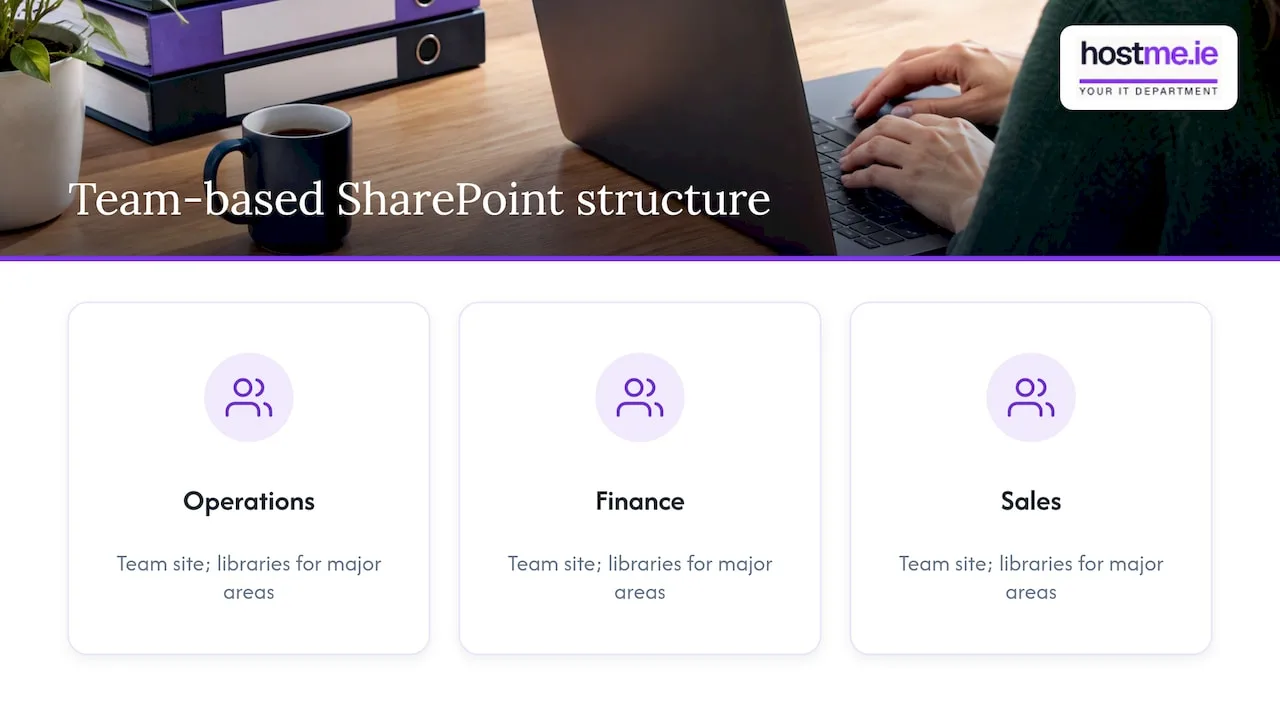
A small business rarely needs many sites. A common starting point is one site per team or function, such as Operations, Finance and Sales, with a library for each major area. Splitting by team keeps permissions readable.
BitTitan’s migration experts suggest restructuring shares before migrating, so libraries stay a manageable size and you avoid hitting list view thresholds. Their best-practice article is worth a read if one of your shares holds hundreds of thousands of files.
A good test for any library design: could a new starter find their files without asking anyone?
Step 3: Check permissions, limits and licences
Do this before the first file moves.
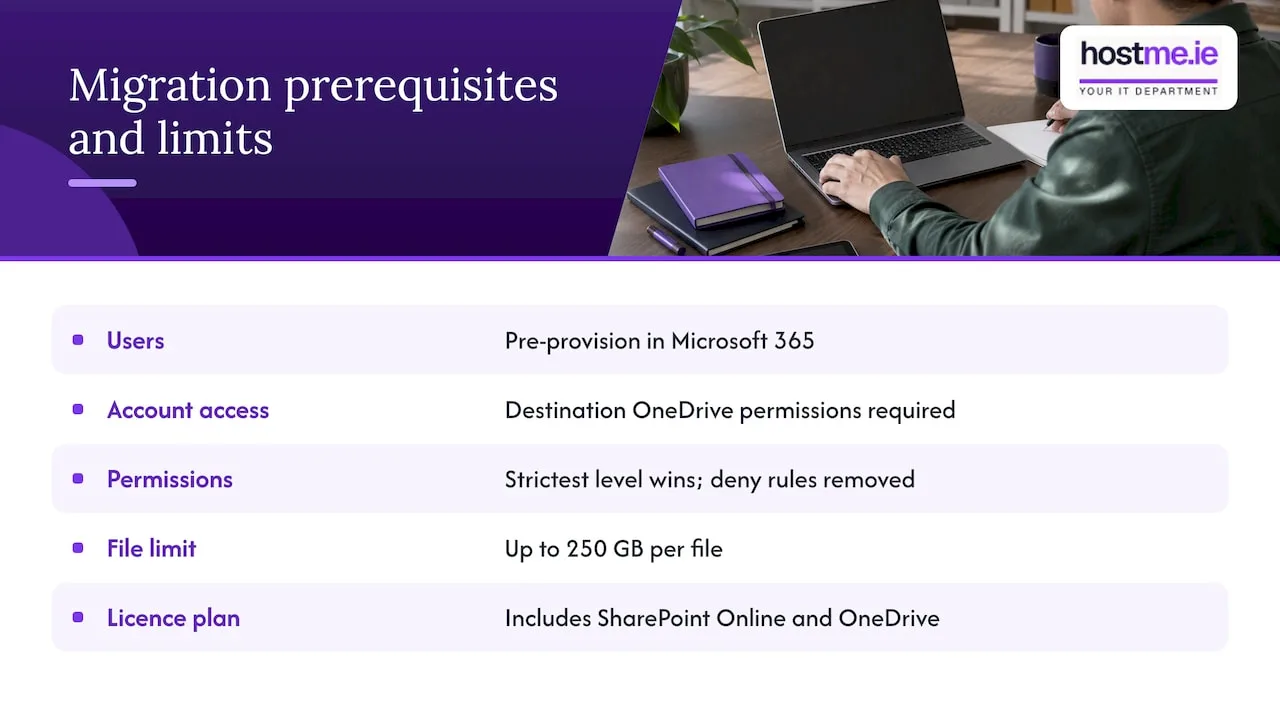
Users first. Microsoft’s guide says to pre-provision users in Microsoft 365, and the migration account needs permissions on the destination OneDrive. Create accounts and assign licences before you start, so there is somewhere for files to land. See the migration guide for the full prerequisites.
Permissions do not copy one-to-one. According to the same guide, where share and NTFS permissions differ, the most restrictive level decides the result, and advanced NTFS permissions, including explicit deny rules, are removed. If your server relied on clever deny rules, plan to rebuild that access deliberately with SharePoint groups rather than expecting it to carry across.
File size. Migration Manager supports files up to 250 GB for file share to Microsoft 365 migrations. Very few small businesses have files near that size, but video and CAD folders sometimes do.
Licences. You need a Microsoft 365 plan that includes SharePoint Online and OneDrive. Most Business Basic, Standard and Premium plans do. If you are still choosing between suites, our comparison of Microsoft 365 and Google Workspace may help.
Internet upload speed. Moving data goes through your broadband line. In rural parts of Galway and Mayo, upload speeds can be modest, so a large migration may need to run overnight or across several nights. Work out the data volume against your real upload speed before you pick a cutover date.
Step 4: Choose your migration tool
For a small business there are two main Microsoft options, both free.
Migration Manager
Migration Manager lives in the SharePoint Admin Center. Lightweight agents installed on a machine that can reach your file share connect it to Microsoft 365. You create tasks that set the source and destination, then monitor progress and reports in the admin centre, as Microsoft explains. It suits businesses with one or more shares and a Microsoft 365 admin account.
SharePoint Migration Tool (SPMT)
SPMT is a desktop tool that is free and easy to use for moving content, and it also offers the scanning described above. Microsoft documents it on its SPMT overview page. It migrates site, document and folder metadata, so dates and details are carried with the files according to Microsoft’s guidance.
Paid tools
Third-party tools exist, such as ShareGate, and several providers sell migration services. For one office with a handful of shares, Microsoft’s free tools are normally enough. Paid tools tend to earn their cost on large, complex tenants.
If you want a general view of how any system migration is planned from first assessment to user onboarding, this piece on planning a system migration shows the same shape of work in a different setting.
Step 5: Run a pilot, then migrate in stages
Microsoft recommends a pilot migration to validate the process, performance, user communication and user feedback, and to train the helpdesk and users before cutover (source). In a small business, you are the helpdesk, so the pilot is also your rehearsal.
A practical sequence:
- Pick a pilot team. Choose a small, low-risk group, such as marketing or admin.
- Migrate their data and have them work from SharePoint for a week.
- Collect problems. Missing files, access denied messages, sync issues, confusion about where things are.
- Fix and repeat with the next team.
- Run a first pass, then a final sync. One independent write-up describes a quiet first pass followed by incremental “delta” syncs, which reduces disruption at cutover (Tales of a Microsoft 365 migration).
- Freeze the old share. Set it to read-only on cutover day so no one saves to the wrong place.
Keep the old server running, read-only, for a defined period after cutover. Do not switch it off the same day.
Keep a baseline
Before and after, record file counts and sizes per folder. The same independent write-up used migration task exports and TreeSize reports as a baseline for understanding the data, and the idea transfers well: if the totals match afterwards, you have evidence nothing was left behind.
Step 6: Map access and get staff working
The most common question after the move is how staff get their drive letter back. The honest answer is that SharePoint does not behave like a mapped drive, but there are two good alternatives.
- Sync the library. Staff select Sync in the library and it appears in File Explorer under the company name, next to OneDrive. Files open like local files, and changes upload in the background.
- Use the browser or Teams. OneDrive also gives access to shared libraries from Microsoft Teams, SharePoint or Outlook, as the Microsoft guide notes.
Syncing everything is not always wise. Syncing a very large library to a small laptop disk fills it up. Ask staff to sync only the libraries or folders they use daily and open the rest online.
For a short training session, cover:
- Where their files now live, with a one-page map of the sites.
- How to sync, and how to see whether a file has uploaded.
- How to share a file with a colleague or an outside client without emailing attachments.
- Who to ask when something does not open.
Microsoft also lists user onboarding as its own phase, so give it time in the plan.
Step 7: Back up and secure the new setup
Moving to SharePoint does not remove the need for backup. Microsoft 365 has recycle bins and version history, but a separate backup protects you from accidental mass deletion, malicious changes and account compromise. Read our guide to Microsoft 365 backup for small businesses before you retire the old server’s backup routine.
Also check:
- Multi-factor authentication is on for every account.
- External sharing is limited to what you actually need.
- Only a small number of people are administrators.
- Leavers are removed promptly.
What a good migration plan looks like
| Phase | What happens | Done when |
|---|---|---|
| Plan | Inventory shares, owners, dependencies | You have a written list |
| Assess and tidy | Archive old data, scan for issues, fix names | Scan reports are clean or understood |
| Prepare | Users, licences, sites, libraries, permission groups | A test file can be saved by each team |
| Pilot | One team migrates and works from SharePoint | Their feedback is addressed |
| Migrate | Staged copy, final sync, old share read-only | File counts match the baseline |
| Onboard | Training, sync set-up, support | Staff work without the old drive |
Our view: why a scoped, staged move works for small businesses
We see the same pattern with small offices: the copy itself is the easy part. The trouble comes from a folder tree nobody has looked at in years, permissions that were set up long ago and never written down, and staff who were not told where things went.
That is why we scope the work before we touch anything. We agree which shares are in, which are archived, who gets access to what, and how staff will be shown the new setup. The aim is that everyone arrives on Monday morning knowing where their files are and how to open them.
We work with Microsoft 365 every day for Irish sole traders and small businesses, and having one person to contact through the whole move means nobody has to coordinate a supplier, a broadband provider and a software vendor on their own. Remote support is the default, with on-site work where agreed.
— hostme.ie
Need a hand with the move?
If you would rather not do this alongside running the business, hostme.ie can scope and carry out the migration with you: inventory, clean-up, SharePoint structure, permissions, the move itself and staff handover. The work is scoped and agreed before it begins. Start with our IT support page and tell us what you have now. If you are in Tuam or Claremorris, our pages for IT support in Tuam and IT support in Claremorris give local detail.
FAQ
Can I map a network drive to SharePoint?
Not in the traditional sense, but you can get the same result. Sync the document library with the OneDrive app and it shows in File Explorer like a normal folder. Staff can also open libraries in a browser or through Teams.
How long does a file server to SharePoint migration take?
It depends on the data volume, your upload speed and how much tidying is needed. The copy can run in the background, but planning, a pilot and staff training usually take longer than the transfer itself. We agree a timetable once we know what you have.
Will my folder permissions carry over?
Partly. The most restrictive of the share and NTFS levels decides the result, and advanced NTFS permissions such as explicit deny rules are removed, according to Microsoft’s guide. Plan to rebuild access using SharePoint groups and check it with each team.
Should everything go into one SharePoint site?
Usually not. Separate sites or libraries for teams and for sensitive areas like finance or HR keep access easier to manage. Personal files belong in each person’s OneDrive.
Sources
- Migrate file shares to SharePoint and OneDrive (Microsoft Learn)
- Overview: Migrate your file shares to Microsoft 365 (Microsoft Learn)
- Overview of the SharePoint Migration Tool (Microsoft Learn)
- Best Practices for a File Share to SharePoint Migration (BitTitan)
- Tales of a Microsoft 365 migration: file shares (SharePoint Stuff)