Pilot small, scale Intune device management for SMEs
Plan an Intune device-management pilot with clear assignments, licensing and checks. Review device access and management scope before changing business systems.

Microsoft Intune is a cloud-based endpoint management service that enrols, configures, protects and retires devices and the apps running on them. The practical outcome for a business is centralised compliance and Conditional Access enforcement, so only healthy, trusted devices reach company data. It works through licences tied to Microsoft Entra ID, an admin centre for daily tasks, and the Microsoft Graph API for anyone who wants to automate the repetitive parts.
TL;DR:
- Smaller pilot groups should test new policies and enrolment methods first to minimize operational risks before scaling to the entire device fleet.
- Device compliance policies, such as OS version and encryption checks, feed directly into Conditional Access, enabling automatic access control based on device health.
- MDM is suitable for corporate-owned devices, while BYOD environments benefit from app protection policies that protect data without managing the entire device.
- Automating device provisioning with tools like Windows Autopilot and Apple ADE simplifies scaling device enrollment and reduces manual effort.
- Staged updates using separate test, pilot, and production rings help prevent widespread issues when deploying Windows updates or new policies.
Table of Contents
- What are the three pillars of Intune device management?
- What does the device lifecycle look like in Intune?
- MDM vs MAM: which management mode fits your devices?
- How do you enrol devices at scale with Intune?
- How does device compliance feed Microsoft Entra Conditional Access?
- How do you manage settings and Windows updates safely?
- How does app management and protection work?
- What licence do you actually need for Intune?
- Which platforms and browsers does Intune support?
- What operational tools help you manage devices day to day?
- How Hostme supports Intune deployments for small businesses
- A pragmatic view: pilot small, protect what matters, automate the rest
- Get help setting up Intune for your business
- Sources
- FAQ
What are the three pillars of Intune device management?
Intune’s design rests on three connected pillars: identities, devices, and apps. Get the relationship between them right, and most of what follows in this guide become far easier to plan.
Identities, managed through Microsoft Entra ID, anchor everything else. Every device and every app protection policy ties back to a user or group identity, which is what makes Conditional Access possible in the first place.
Devices are the endpoints that report their health, or “posture”, back to Intune: encryption status, OS version, jailbreak or root detection, and more. Apps are the actual work surface, and Intune can protect them either through full device management or through app-level controls alone, without ever enrolling the device.
Here’s a simple example of the three pillars working together:
- A user (identity) signs in from a laptop (device)
- Intune checks the device’s compliance state (encryption on, OS patched)
- If compliant, Microsoft Entra Conditional Access grants access to the app (Outlook, SharePoint); if not, access is blocked or limited
This is the core concepts framework Microsoft documents, and it underpins every policy decision you will make in Intune.
What does the device lifecycle look like in Intune?
Every device Intune manages passes through four stages, and each one has its own admin centre tasks.
- Enrol. Choose your method based on ownership: Windows Autopilot for corporate Windows devices, Apple Automated Device Enrollment for company iPhones and iPads, Android Enterprise for corporate Android, or the Company Portal app for user-driven, bring-your-own-device (BYOD) enrolment. User affinity matters here. Corporate devices are usually enrolled with a primary user attached, whereas kiosk or shared devices are enrolled without one.
- Configure. Apply settings through configuration profiles or the settings catalog. This is where you set Wi-Fi profiles, VPN configs, restrictions, and app configuration policies.
- Protect. Layer compliance policies, security baselines, and, where relevant, Mobile Threat Defence (MTD) integrations such as Microsoft Defender for Endpoint. This is the stage that actually keeps risky devices out of your data.
- Retire. When a device leaves the fleet, whether through staff departure or replacement, you choose between a full wipe (corporate devices) or a selective wipe that removes only company data and apps (common on BYOD, where personal photos and files stay untouched).
Each stage has its own section in the Intune admin centre, and getting the enrolment method right at stage one saves considerable rework later.
MDM vs MAM: which management mode fits your devices?
Mobile Device Management (MDM) gives you full control over the device: settings, restrictions, remote wipe, the works. Mobile Application Management (MAM) is narrower and only manages the apps and data inside them, leaving the rest of the device untouched. The choice matters as much for user privacy as for security control, and getting it wrong causes friction fast.
- Corporate-owned devices almost always suit full MDM enrolment, since the business owns the hardware and can reasonably manage it fully.
- BYOD phones and tablets usually work better with MAM only. Staff keep their personal apps and photos private, while company email and Teams data stay protected inside app protection policies.
- Shared or kiosk devices (a reception PC, a warehouse scanner) typically need MDM without user affinity, since no single person owns the device.
- Hybrid deployments combine both: MDM for laptops and desktops the business owns, MAM for personal phones accessing email and Teams.
A small accountancy practice (a fictional example) might enrol its office desktops fully under MDM while protecting partners’ personal phones with app protection policies alone, avoiding any need to manage those handsets outright.
How do you enrol devices at scale with Intune?
Provisioning a handful of laptops manually is fine. Provisioning fifty is not, which is why Intune leans heavily on automated programs for organisation-owned hardware.
- Windows Autopilot lets new Windows devices self-provision straight from the box, pulling policies and apps automatically once a user signs in.
- Apple Automated Device Enrollment (ADE) does the same for company-bought iPhones and iPads, tying them to your Intune tenant before they ever reach a user.
- Android Enterprise provides fully managed, work profile, and dedicated device modes, covering everything from corporate phones to single-purpose Android kiosks.
- Company Portal can support enrolment of personal devices, but management scope varies by platform and enrolment method. Confirm exactly what administrators can view or remove; a work-only boundary must not be assumed for every device.
Device groups, whether static (manually assigned) or dynamic (rule-based, e.g. “all devices in the Sales department”), control which policies and updates land where.
Pilot first: assign policies to a dedicated pilot group and verify all existing assignments, exclusions and filters before expanding. Scope tags limit administrator visibility; they do not isolate devices from policy assignments.
How does device compliance feed Microsoft Entra Conditional Access?
This is where Intune stops being a configuration tool and becomes a genuine security gate. Compliance policies check a device against rules you define, and the resulting compliance state gets passed straight to Microsoft Entra Conditional Access, which then decides whether that device gets access to company resources at all.
Common compliance rules include:
- Minimum and maximum OS version
- Disk encryption (BitLocker on Windows, FileVault on macOS)
- Password or PIN complexity requirements
- Jailbreak or root detection on mobile
- TPM chip presence on Windows devices
- Risk score thresholds pulled from Microsoft Defender or another Mobile Threat Defence provider
Compliance policies aren’t just a checklist. They’re the enforcement engine behind Conditional Access, and requiring something as simple as disk encryption or a minimum OS version can automatically block access for any device that fails the check.
When a device falls out of compliance, you decide what happens next: an email warning to the user with a grace period, a mark of “noncompliant” that Conditional Access acts on immediately, or in stricter setups, an automatic remote lock. Building in Defender risk scores adds a further layer, letting Conditional Access respond to active threats rather than just static configuration checks.
How do you manage settings and Windows updates safely?
Standardising settings and rolling out updates without breaking anything both come down to the same principle: stage everything, never push to everyone at once.
- Use the settings catalog or configuration profiles to apply consistent platform settings, whether that’s disabling USB storage on finance laptops or enforcing screen lock timeouts across the fleet.
- Design update rings in three stages: a small test ring (IT team devices), a pilot ring (a cross-section of real users), and a production ring (everyone else). Update rings let you delay feature updates, and critically, pause or uninstall a recent update if something goes wrong.
- Target rings using appropriate group assignments and supported filters. Review every applicable assignment and exclusion. Scope tags control administrator visibility, not which devices receive a policy.
This staged approach, moving from test through pilot to production, is the single biggest lever for reducing the operational risk of any fleet-wide change, whether it’s a Windows feature update or a new compliance policy.
How does app management and protection work?
Deploying apps through Intune covers Win32 packages, Microsoft Store apps, and native iOS or Android apps, each with its own assignment and detection rules.
- App protection policies enforce data controls (copy/paste restrictions, save-as blocking, PIN requirements) inside managed apps, independent of whether the device itself is enrolled.
- Selective wipe removes company data and app access from a device or user account without touching personal content.
- App configuration policies push settings directly into an app, such as pre-configuring a mail app with the correct server settings.
MAM-only deployment is worth defaulting to for BYOD phones. It sidesteps the privacy concerns full enrolment raises, though it comes with a caveat: without device enrolment, you lose visibility into overall device health, so it suits data protection far better than device security.
What licence do you actually need for Intune?
Intune offers Plan 1, Plan 2 and the Intune Suite, with separate add-ons and feature-specific licensing. Remote Help requires an additional subscription beyond Plan 1 or Plan 2; do not assume Plan 2 includes it. Check Microsoft’s Remote Help prerequisites and the current licensing for the exact capabilities being proposed.
Device-only licences exist for shared or single-use devices, like a warehouse scanner or reception kiosk, where assigning a full per-user licence makes no sense. The catch: device-only licences don’t support Conditional Access or app protection policies, so any access-sensitive kiosk scenario needs a design workaround, not a licence shortcut.
Which platforms and browsers does Intune support?
Intune covers a genuinely broad OS matrix: Windows, macOS, Linux, iOS/iPadOS, Android, and Chrome OS all have varying levels of support, though feature parity is never identical across platforms. Always check the supported platforms reference before assuming a policy type works everywhere.
The admin centre itself runs in modern browsers, including Edge, Chrome, Safari, and Firefox. Before rolling any policy out fleet-wide, test it against a real device on the actual OS version your users run, not just the newest release.
What operational tools help you manage devices day to day?
Beyond policies, Intune gives admins a set of hands-on tools for daily fleet management.
- Bulk device actions let you restart, lock, or sync multiple devices at once, though the admin centre and Graph API both impose practical caps on batch sizes.
- Remote Help provides secure remote support sessions, gated by role-based access control (RBAC), so only authorised technicians can connect to a user’s screen.
- Microsoft Graph API automation covers the repetitive tasks: bulk enrolment, scripted compliance checks, or scheduled reporting exports.
Control high-impact actions: automation can repeat a mistake across many devices. Restarts, retirements and wipes require verified targets, explicit operational authorisation and recovery planning. Test reporting and target selection first; do not use a marketing example to run actions against a customer tenant.
How Hostme supports Intune deployments for small businesses
Some IT providers assist businesses with planning, enrolment, and policy setup, including integration with Microsoft 365 and Microsoft Entra, plus staff training on new device rules. A typical engagement might start with a small pilot group and expand once policies are proven stable.
The exact scope of any IT engagement should be agreed upfront. For full detail on what is usually included, see the IT support service page.
A pragmatic view: pilot small, protect what matters, automate the rest
Most SMEs overcomplicate their first Intune rollout by trying to lock down every device on day one. Start narrower: enforce compliance on your highest-risk users first (finance, admin), expand using dynamic groups, and stage updates through rings rather than pushing to everyone at once. If you don’t have in-house capacity for the first pilot, bring in a local provider who can set the guardrails correctly from the start.
— hostme.ie
Get help setting up Intune for your business
Some providers offer a direct alternative to call-centre IT support for small businesses working through their first Intune rollout, with no ticket queue or waiting on hold. Clients get a technician familiar with their setup who can assist with enrolment, compliance policies, and Microsoft 365 integration.
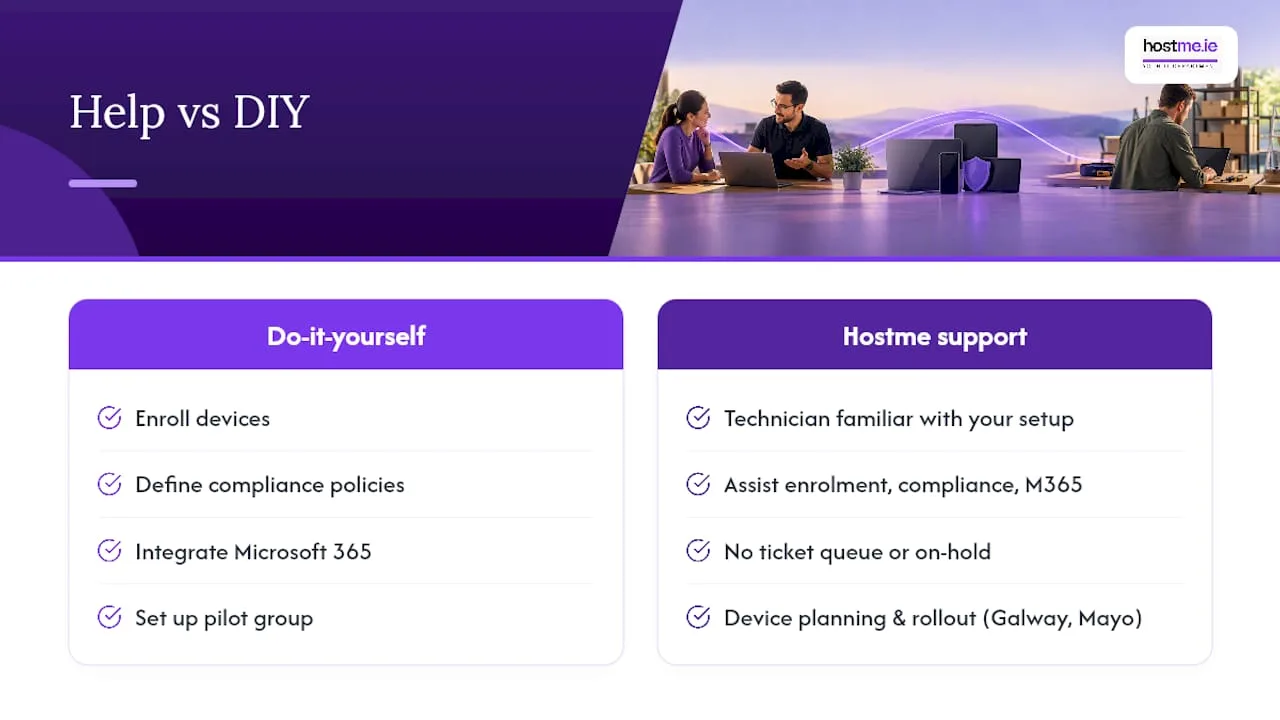
If you’re weighing up whether to tackle this in-house or get a hand with the pilot group, Hostme’s IT support service covers device management planning and rollout for small businesses in Galway and Mayo. For businesses further along in their AI or automation plans, Hostme’s AI for business service can also help script the repetitive Graph API tasks covered above. Message Hostme on WhatsApp to talk through your device fleet and get a straightforward next step.
FAQ
What can my employer see with Intune?
Your employer can see device-level information tied to compliance, such as OS version, encryption status, and whether the device meets security policy. On BYOD devices managed through app protection only (MAM), visibility is limited to the managed work apps, not personal photos, texts, or browsing history.
What is Intune for device management?
Intune is a cloud-based service that enrols, configures, secures, and retires an organisation’s devices and apps, feeding device health into Microsoft Entra Conditional Access to control access. It covers Windows, macOS, iOS, Android, Linux, and Chrome OS devices from a single admin centre.
Can Intune monitor your phone?
On a fully enrolled corporate phone, Intune can monitor compliance details like OS version, encryption, and jailbreak status, and can remotely wipe the device if needed. On a personal phone managed only through app protection policies, Intune’s visibility stops at the managed work apps.
Can Microsoft Intune track activity?
Intune tracks device compliance and configuration state rather than personal browsing or app usage activity on BYOD devices under MAM. On fully managed corporate devices, admins get broader visibility, including location data if location services are enabled and permitted by policy, alongside compliance and inventory reporting.
Recommended
- Small Business Technology Setup Ireland — Where to Actually Start
- DIY IT Small Business Guide — Step by Step Setup and Maintenance
Sources
Assignment reference: Microsoft profile assignments; administrator RBAC and scope tags.