Secure WordPress Login Now: Small Business Checklist, When to Get Help
Prioritized checklist for busy small businesses: secure WordPress login today with HTTPS, unique passwords and 2FA. Schedule updates, backups.
Secure your WordPress login by ensuring HTTPS, using strong unique passwords with a manager, enabling two factor authentication, and rate limiting login attempts. These four actions stop most automated attacks, and layering in current backups and updates closes off the rest. Everything below shows you how to put each piece in place, in the order that matters most.
TL;DR:
- Using a content delivery network or web application firewall at the edge can block most brute force attacks before they reach your server, reducing resource load.
- Enabling two factor authentication with backup codes and considering passkeys significantly enhances login security, especially for administrator accounts.
- Regularly applying updates, testing backups, and monitoring login activity help maintain long-term security and quickly identify potential breaches.
- Restrict or disable xmlrpc.php if unused, and review application passwords periodically to prevent unauthorized API access.
- Confirm your site loads securely over HTTPS with a valid certificate and eliminate mixed content issues to prevent browser warnings and insecure login warnings.
Table of Contents
- Your quick checklist: today, this week, and ongoing
- Hardening authentication: passwords, two factor and passkeys
- Blocking and rate limiting abusive login attempts
- Application passwords, xmlrpc.php, and revoking API access
- Diagnosing “login not secure” and mixed content issues
- Keeping it secure: updates, monitoring, and backup readiness
- When to handle it yourself and when to call for help
- Get your WordPress login properly secured
- Where to check the technical details yourself
- Sources
- FAQ
Your quick checklist: today, this week, and ongoing
You don’t need to fix everything at once. Sorting tasks by urgency keeps this manageable, even if you’re doing it between customer calls.
Start today with the basics that take minutes but close the biggest gaps:
- Confirm your site loads over HTTPS with a valid certificate, not a browser warning.
- Change any weak or reused admin password and put it in a password manager.
- Turn on two factor authentication for every administrator account.
This week, once the urgent gaps are shut, add the layers that stop automated attacks:
- Install a reputable security plugin or switch on your host’s web application firewall (WAF).
- Disable xmlrpc.php if you don’t use it, or restrict it if you do.
- Add rate limiting so repeated failed logins get blocked automatically.
Ongoing, build the habits that keep you secure month after month:
- Keep automated, tested backups running offsite.
- Apply core, theme and plugin updates on a regular schedule.
- Review your list of admin users and check logs periodically for unfamiliar login attempts.
None of this needs to happen in one sitting. Doing the “today” list this week and the rest within a month puts you well ahead of most small business sites.
Hardening authentication: passwords, two factor and passkeys
Weak or reused passwords are still the easiest way into a WordPress site, which is exactly why brute force attacks rely on nothing more than automated guessing against your login page. Fixing this starts with what you and your team actually type into that login box.
1. Use a password manager and unique passphrases. A long passphrase (four or five unrelated words) beats a short complex string that you’ll end up writing on a sticky note. Tools such as 1Password or Bitwarden generate and store a different password for every site, so a breach elsewhere never touches your WordPress login.
2. Remove shared logins. If two staff members use the same “admin” account, you lose any ability to tell who did what, and you double the chance that one weak password compromises the site. Give each person their own account with only the access their role needs.
3. Turn on two factor authentication (2FA). WordPress core doesn’t include 2FA on its own, so you’ll need a plugin or an identity provider to add it, and this is worth doing for every administrator. Once installed, a TOTP app such as Authy or 1Password generates a rotating six digit code that you enter alongside your password. Even if a password leaks, the attacker still needs that code.
4. Store backup codes safely. Most 2FA setups, including the widely used Two-Factor plugin, offer backup codes for when your phone is lost or your authenticator app isn’t available. Print them or store them in a separate secure note, not in the same password manager entry as the account they protect.
5. Require 2FA for admin and editor roles at minimum. You can phase it in for lower privilege accounts later, but administrators should never log in without it.
6. Consider passkeys where your plugin supports them. Passkeys use WebAuthn, the same technology behind Face ID and Windows Hello logins, and they’re built to resist phishing in a way that passwords and even some 2FA codes can’t match. Instead of typing anything, you approve the login with your device’s fingerprint, face scan or security key.
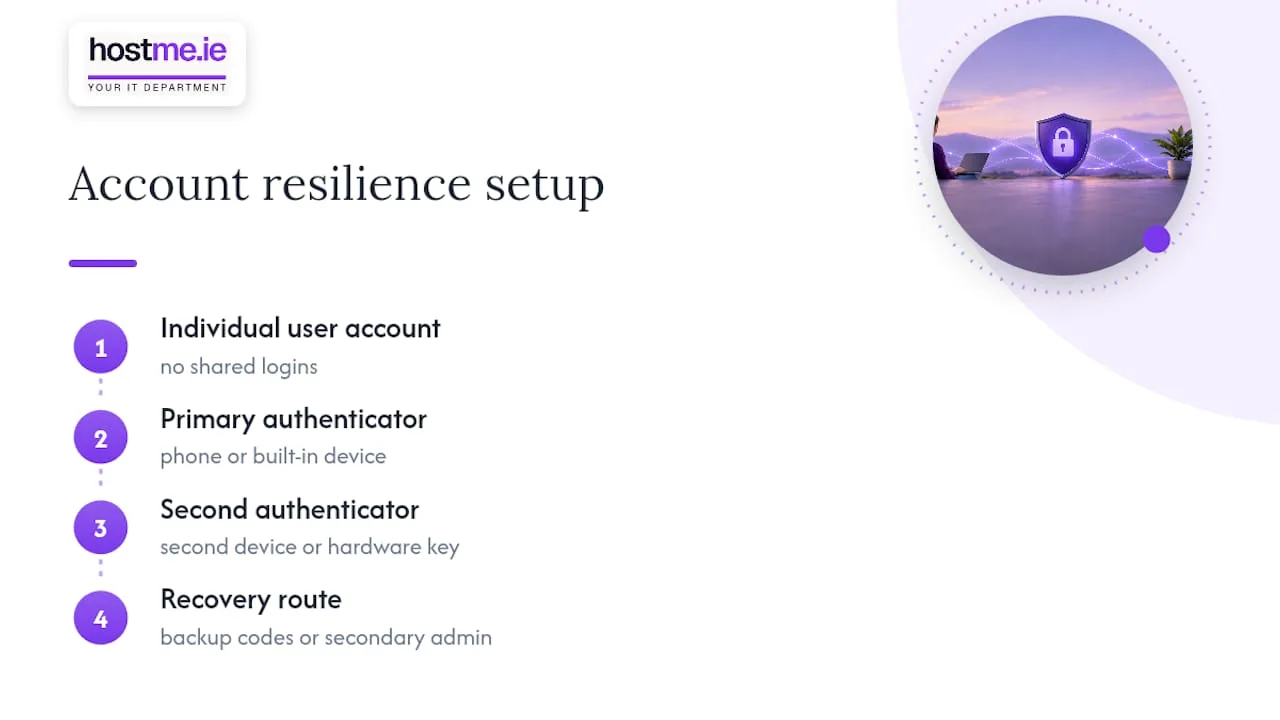
If you’re rolling out passkeys, register at least two authenticators per account (for example, a phone and a hardware key, or a phone and a laptop’s built in authenticator). Losing your only registered device without a backup method locks you out of your own site, so plan a fallback route, whether that’s backup codes or a secondary admin account, before you switch it on for everyone.
Pro Tip: Test 2FA and passkey logins in a private browser window before rolling them out to your whole team, so you catch any lockout issues while you still have your normal session open.
Blocking and rate limiting abusive login attempts
Most brute force traffic is automated, hammering /wp-login.php and /xmlrpc.php with thousands of guesses. The most effective place to stop it is before that traffic ever reaches your WordPress installation, which is why edge level protections such as a content delivery network or a host provided WAF are the preferred first line of defence. A firewall running at the edge blocks bad requests using far less server resource than a PHP based plugin trying to do the same job after the request has already landed.
If you manage your own server or work with a technician who does, these examples give a starting point for rate limiting at the web server level:
| Server | Approach | Example |
|---|---|---|
| Nginx | Limit requests to the login and XML-RPC endpoints using a rate zone | limit_req_zone $binary_remote_addr zone=login:10m rate=some requests per minute; applied to a location block matching /wp-login.php applied to a location block matching /wp-login.php |
| Apache | Restrict repeated requests using mod_evasive or rewrite rules |
A mod_evasive rule capping requests per IP to the same URI within a short window |
| Cloudflare or host WAF | Apply a managed rate limiting rule to login paths | A rule matching /wp-login.php and /xmlrpc.php with a low threshold of requests per minute per IP |
Where edge tools aren’t available, a plugin that limits login attempts, or a server side tool such as Fail2ban watching your access logs, is a reasonable fallback. The trade off is that these run inside the same server resources the attack is targeting, so a large enough flood can still slow the site even while it’s being blocked.
Application passwords, xmlrpc.php, and revoking API access
WordPress has two very different ways to authenticate: the login form you use in a browser, and application passwords, which exist purely for programmatic access such as a mobile app or an integration talking to the REST API or XML-RPC. An application password cannot be used to log into wp-admin interactively, which makes it a safer credential to hand to a third party tool than your main account password.
That distinction matters for xmlrpc.php specifically, since it’s a frequent target for brute force attempts:
- If nothing on your site uses xmlrpc.php (no Jetpack, no mobile app, no remote publishing tool), disable it entirely.
- If you do rely on it, restrict access with WAF rules and apply rate limits rather than leaving it open to the internet unchecked.
- Review the application passwords listed under each user’s profile periodically and revoke any you don’t recognise or no longer need.
- Disable application passwords for roles that never need API access, such as a contributor account used only for drafting posts.
Auditing this takes a few minutes in the user profile screen and closes a door that many site owners forget even exists.
Diagnosing “login not secure” and mixed content issues
A “Not secure” warning on your login page almost always traces back to one of a handful of causes, and WordPress’s own troubleshooting guidance points to the same starting checklist regardless of your host.
- Check that your TLS certificate is valid and hasn’t expired, using your browser’s padlock details or a certificate checker.
- Confirm
WP_HOMEandWP_SITEURLin your site settings both usehttps://, nothttp://. - Look for mixed content, images, scripts or styles still loading over plain HTTP, which browsers flag even on an otherwise secure page.
- Check any CDN or reverse proxy in front of your site for redirect loops or incorrect origin protocol settings.
- Clear caching plugins and any server side cache, and make sure
wp-login.phpis excluded from page caching so you’re not seeing a stale version of the warning.
If the certificate itself is the problem, or a proxy configuration is beyond what you can adjust in WordPress settings, that’s the point to hand it to your host or technician rather than working around it with plugins.
Keeping it secure: updates, monitoring, and backup readiness
Security isn’t a one time setup. It’s a routine, and a light one if you keep to it.
- Apply plugin and theme updates weekly, and test major core updates on a staging copy first if your site is complex.
- Set up basic monitoring for failed login attempts, either through your security plugin or your host’s dashboard, so a spike doesn’t go unnoticed.
- Use audit logs to spot unfamiliar admin logins and apply temporary IP blocks when you see repeated failures from the same source.
- Keep backups stored offsite, separate from your hosting account, and test a restore at least occasionally so you know it actually works.
- If you suspect a login has been compromised, change that password immediately, revoke its active sessions and application passwords, and check the user list for any account you don’t recognise.
None of these steps take long individually. Skipping all of them for months at a time is how a small, fixable gap turns into a full rebuild.
When to handle it yourself and when to call for help
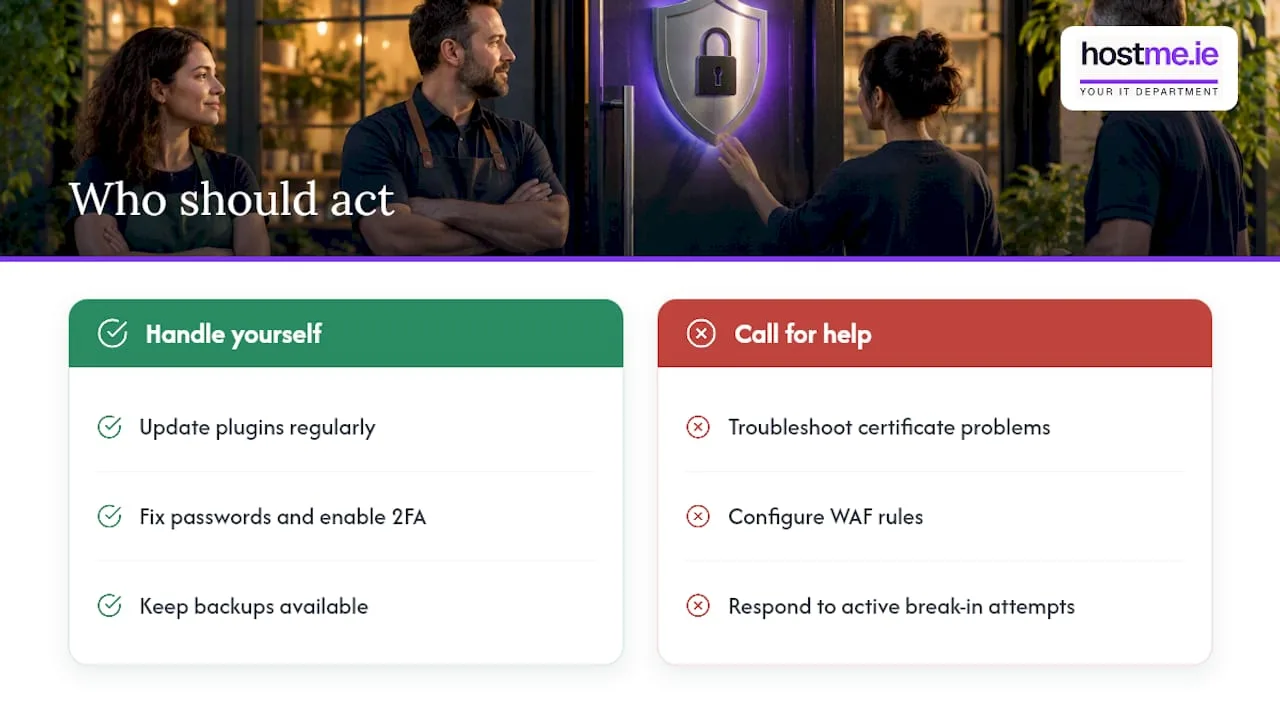
Most of the small business sites we come across get caught out by the same three things: plugins left unupdated for months, a certificate nobody was watching, and no backup to fall back on when something goes wrong. Passwords and 2FA you can sort yourself in an afternoon. Certificate issues, WAF configuration and anything that looks like an active break in attempt are worth handing to someone who deals with them regularly. Support for hosting, SSL and WordPress maintenance work is available for exactly that reason.
Get your WordPress login properly secured
If you’d rather have someone check the whole setup instead of working through each step alone, that’s what a security review is for. We look at your certificate, login protections, backup coverage and plugin versions, and fix what needs fixing rather than handing you a list. Our security & SSL service covers certificate management and WAF setup, our web hosting includes ongoing maintenance, and IT support covers the rest of your systems when login security is one part of a bigger picture.
- Security & SSL: certificate installation, renewal and WAF configuration for your login page.
- Web hosting: managed hosting with WordPress maintenance and update handling built in.
- Backup & recovery: offsite backups with tested restores, so a compromised login doesn’t mean a lost site.
- IT support: for everything else running your business, from email to day to day troubleshooting.
If you’d like a second pair of eyes on your setup, message us on WhatsApp and we’ll go through what needs attention first.
Where to check the technical details yourself
For implementation specifics, WordPress’s own documentation on brute force defences and logging in covers the mechanics in full, and plugin pages such as this comparison of WooCommerce security plugins are worth a read if you’re choosing between options.
FAQ
How do you know if your WordPress site has been hacked?
Warning signs include unfamiliar admin accounts, unexpected changes to posts or files, sudden spikes in failed login attempts, or your site being flagged by browsers or search engines. Checking your user list and audit logs regularly is the fastest way to catch a compromise early, and WordPress’s own guidance on login behaviour is a useful reference point for what’s normal.
Can I password protect my WordPress site?
Yes, you can add a password to your whole site or specific pages using a plugin, separate from the login page password that protects wp-admin. This is different from securing the login itself, which needs strong passwords, 2FA and rate limiting rather than a site wide password prompt.
How do I access my WordPress login?
Your login page is normally found at yoursite.com/wp-login.php, where you enter your username and password to reach wp-admin. If you’ve changed the login URL for security, you’ll need to use that custom address instead, and WP-CLI is the recommended tool for resetting access if you’re locked out entirely.
How do I protect my WordPress website from hackers?
Protecting your site means combining HTTPS, strong unique passwords, two factor authentication and rate limiting on login attempts, alongside keeping core, themes and plugins updated. Disabling unused features such as xmlrpc.php and keeping tested backups ready covers most of what brute force attack guidance recommends as baseline defence.