How to Set Up Microsoft 365 for a Small Business in 2026
A practical guide for Irish small businesses to set up Microsoft 365: create the tenant, connect your domain, add staff, secure sign-ins and check email works.

Setting up Microsoft 365 for a small business takes five jobs, in this order: get your domain details ready, create the tenant and administrator account, connect your domain, add your staff with the right licences, and switch on security. A tidy setup for a handful of users can be done in an afternoon. The parts that go wrong are almost always the domain and email records, so those get most of our attention below.
This guide is for sole traders, owner-operators and office managers in Ireland who are responsible for the IT decisions. It covers what to prepare, each step in the admin centre, what it costs, and where you may want a second pair of hands.
TL;DR
- Before you start, gather a list of staff, the name of the company that holds your domain, and its sign-in details.
- Whoever signs up becomes the administrator, so use a business email address and a strong password, not a personal account you may lose.
- Connect your domain with the guided setup in the admin centre, then check that email records (MX, SPF, Autodiscover) are correct.
- Turn on multi-factor authentication for everyone. Users get 14 days to register once security defaults apply.
- Business Basic is €6.07 per user a month paid yearly, excluding VAT. Business Standard and Premium cost more and add desktop apps and extra security.
Table of Contents
- What to have ready before you create the tenant
- Choose the right plan and know the cost
- Step 1: Create the tenant and administrator account
- Step 2: Connect your business domain
- Step 3: Add users and assign licences
- Step 4: Install the apps on computers and phones
- Step 5: Secure sign-ins before anyone relies on it
- Step 6: Check email works before you rely on it
- A realistic example (fictional)
- Our perspective
- When to ask for help
- FAQ
- Sources
What to have ready before you create the tenant
A tenant is simply your business’s own space inside Microsoft 365: your users, your domain, your settings. Microsoft’s planning guide for business setup says to have three things to hand before running the wizard:
- A list of the people to add. Names and the email address each person should have, such as firstname@yourbusiness.ie.
- A plan for telling staff their user ID and password. Decide whether you will hand credentials over in person, by email or by print-out.
- Your domain details. If you want email on your own domain, note where the domain is registered and have the sign-in information ready.
It also helps to decide a few things yourself:
- Which plan you need. See the pricing section below.
- What happens to your current email. If you use an ISP address or another provider, work out whether old mail needs to move across. Our business email setup and migration checklist covers that side.
- Who will be the administrator. Ideally one named person, plus a second admin account kept safe for emergencies.
If your domain is registered with us, we can help find the records quickly. See our domains page.
Choose the right plan and know the cost
Most small businesses choose between Business Basic, Standard and Premium. Prices on Microsoft’s Irish pages, as read in 2026, are below. Check the live pages before you buy, as Microsoft can change them.
| Plan | Price per user per month | What to know |
|---|---|---|
| Business Basic | €6.07, paid yearly, excl. VAT | Web and mobile apps, email, Teams, cloud storage |
| Business Standard | €12.13 | Adds the desktop Office apps |
| Business Premium | €19.06 | Adds advanced security features |
| Apps for business | €11.00, paid yearly, excl. VAT | Desktop apps only, no business email |
If you do not need Teams, Microsoft also lists plans without Teams: Business Standard at €9.34 and Business Premium at €16.28 per user a month, paid yearly, excluding VAT.
The business plans (Basic, Standard, Premium and Apps for business) suit organisations of up to 300 users, which covers nearly every sole trader and small firm.
A simple way to choose:
- Business Basic if your team works mostly in a browser or on phones and mainly needs email, Teams and file storage.
- Business Standard if people need Word, Excel and Outlook installed on their computers.
- Business Premium if you handle client data, want stronger device and sign-in controls, or need to meet a customer’s security requirements.
Not sure whether Microsoft is the right fit at all? Our comparison of Microsoft 365 and Google Workspace sets out the decision for small firms.
Step 1: Create the tenant and administrator account
The steps below follow Microsoft’s guide to signing up for Business Basic. Other plans follow the same pattern.
- Go to the Microsoft 365 for business page and select the plan.
- Choose the number of users, subscription length and billing term.
- Enter an email address where Microsoft can contact you.
- Enter your business details and verify your identity by text or phone call.
- Create your sign-in: a username, a .onmicrosoft.com domain name and a password.
- Choose the number of licences, add a payment method and place the order.
Two points matter here:
- The person who signs up becomes the technical administrator. That account controls everything: billing, users, email and security. Make sure it belongs to the business owner or someone you trust long term.
- The .onmicrosoft.com name is permanent in practice. It will show up in some places, so choose something sensible, such as your trading name.
Microsoft then emails the next steps, and you continue in the Microsoft 365 admin centre.
Step 2: Connect your business domain
This is the step that makes your email address look like yours. In the admin centre, select Dashboard view and go to guided setup. In the Add domain step, enter your domain and follow the wizard. It asks you to add DNS records to prove you own the domain.
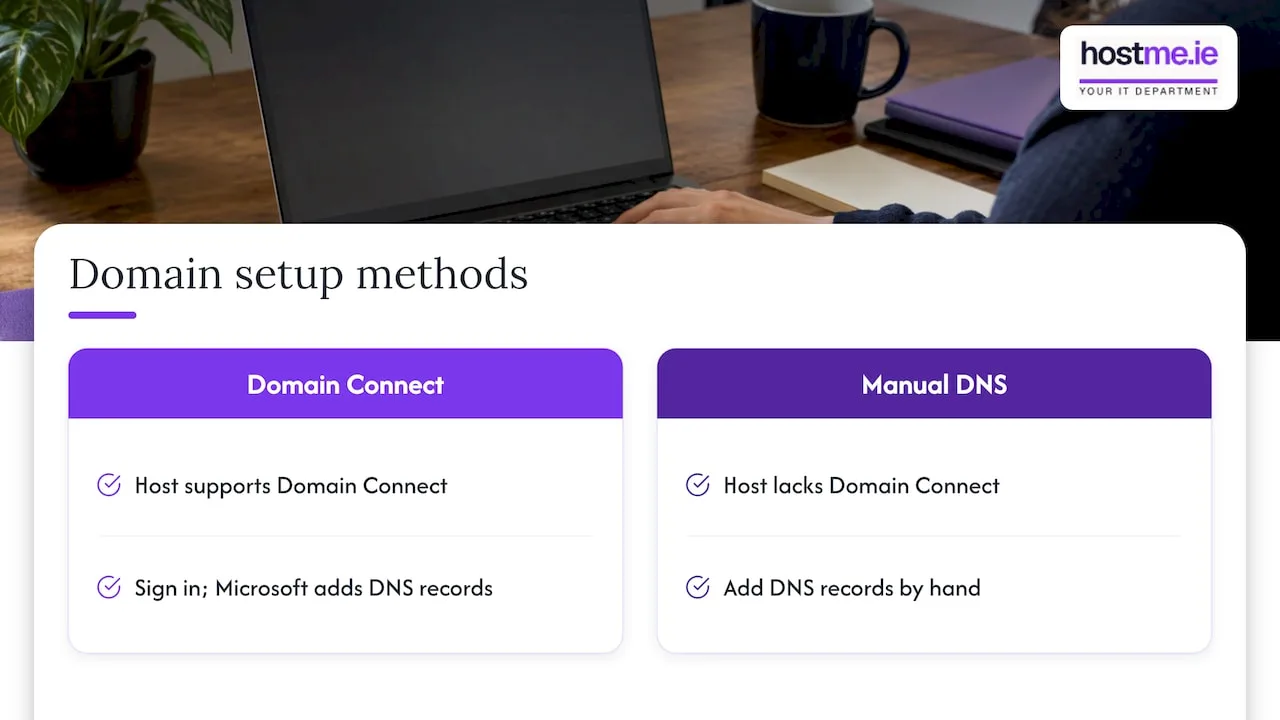
If your domain host supports Domain Connect, you can sign in when prompted and let Microsoft add the records for you. Otherwise you add them by hand where the domain’s DNS is managed. That may be your registrar, your web host or a separate DNS service.
This is the point where people most often get stuck, because the DNS is often managed by an old web designer or a company no one remembers. If that sounds familiar, ask us. We can look at it with you under our Business email service.
Do not switch email over too early
When you change MX records, new email starts arriving in Microsoft 365 instead of the old system. If staff are still using old mailboxes, mail can seem to go missing. Create the mailboxes first, then change the records, and plan any move of old mail at the same time.
Step 3: Add users and assign licences
You can add users in the setup wizard or later in the admin centre. Users added in the wizard automatically get a Business Basic licence, and you can share their credentials by printing, emailing or downloading them.
If you chose Standard or Premium, check that each person has the licence you are actually paying for. A user with no licence has no mailbox.
Good habits at this stage:
- Use a consistent address format for everyone.
- Create shared mailboxes, such as info@ or accounts@, for roles rather than people where you can.
- Give only the owner and one backup person admin rights. Everyone else is a standard user.
- Write down who has which licence so you can remove it when someone leaves.
Our IT checklist for onboarding new staff is useful for the full process of bringing someone on, and taking them off again.
Step 4: Install the apps on computers and phones
Once accounts exist, staff can install the desktop apps themselves, as Microsoft explains in its guide to setting up Microsoft 365 Apps for business. They go to My account, choose Install Office, sign in with their work account and select Install.
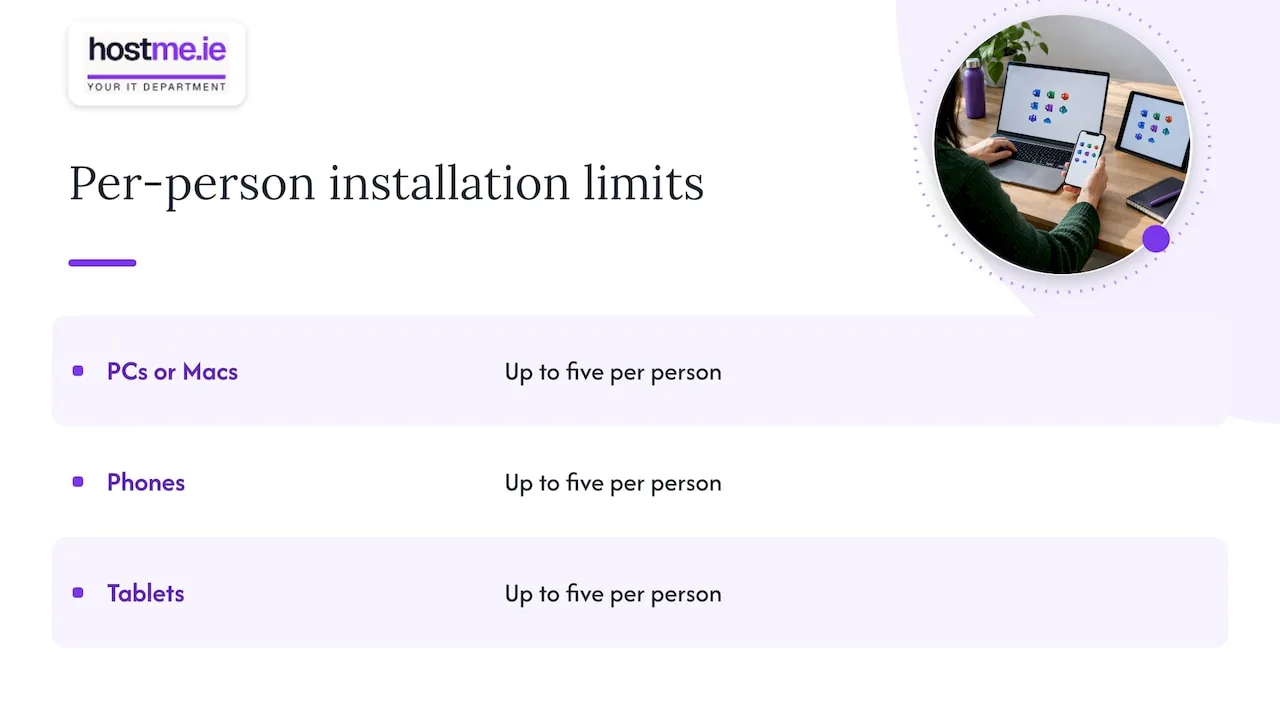
Each person can install on up to five PCs or Macs. On mobile, they install the Microsoft 365 mobile apps and set up Outlook with the new mailbox. Each person can use up to five phones and five tablets.
Note that desktop apps need a plan that includes them (Standard, Premium or Apps for business). On Business Basic, staff use the web and mobile versions.
Step 5: Secure sign-ins before anyone relies on it
Security is the step most often left for later, and later rarely comes. Microsoft 365 for business includes Microsoft Entra ID Free, and security defaults are on by default, which turns on multi-factor authentication (MFA) for users and administrators. Business Premium includes Entra ID P1, which allows Conditional Access policies as an alternative.
What that means in practice:
- Each user has 14 days to register for MFA with the Microsoft Authenticator app, counted from first sign-in once security defaults apply. After that they cannot sign in until they register.
- For plans without Entra ID P1 or P2, Microsoft’s recommendation is to keep security defaults on.
- Register your own admin account first, and keep the recovery details somewhere safe.
If you are weighing authenticator apps, see our comparison of Duo and Microsoft Authenticator. For wider protection, our Security & SSL page explains what we help with. If staff use phones and laptops for work, read our MDM plan for small businesses.
Backup is not automatic
Microsoft 365 stores your data, but that is not the same as having a backup you control. Microsoft offers Microsoft 365 Backup as a pay-as-you-go service, priced at $0.15 per GiB a month of protected content. It covers SharePoint sites, OneDrive accounts and Exchange mailboxes, with recovery windows from 3 months to 2 years. Our guide to Microsoft 365 backup for small businesses explains the options in plain terms.
Step 6: Check email works before you rely on it
Before telling clients about your new address, run through this list. It reflects the points raised in Microsoft Q&A guidance on new Microsoft 365 email.
- The domain shows as Healthy in the admin centre.
- The domain is set to Authoritative, not Internal Relay, in the Exchange admin centre.
- The MX, SPF and Autodiscover records are correct at your DNS host.
- Old MX records pointing to a previous provider are removed.
- You have only one SPF record. Two will cause problems.
- You have allowed time for new mailboxes. They can take 15 to 60 minutes, sometimes longer, after a licence is assigned.
Then test properly. Send a message from an outside address to each mailbox, reply from the new account, and send to a Gmail or Outlook.com address to confirm it does not land in spam.
A realistic example (fictional)
To show how this goes, here is a made-up case. A three-person plumbing firm in Mayo has email on an ISP address and a domain registered years ago by a web designer. The owner wants proper business email and shared files.
- They list the three users and a shared mailbox for the office.
- They find the domain login through the registrar’s password reset.
- They choose Business Basic, as everyone mostly uses phones and a browser.
- They create the tenant, add the domain and add the DNS records.
- They create mailboxes, move old mail, then change the MX records.
- They register everyone for MFA on the first day.
The biggest delay in a case like this is usually finding the domain login, not the Microsoft side.
Our perspective
Most small business setups that go wrong do so for dull reasons: an admin account tied to someone who left, a domain nobody can log in to, or MFA put off until it is a crisis. None of these is hard to fix at the start. All of them are annoying later.
Our view is that a small business is better served by one person to contact who understands the whole picture: the domain, the email, the devices and the way your staff actually work. That is how we run hostme.ie. We agree the scope before work begins, and we support remote work and on-site visits where agreed.
If you would like to do the setup yourself, the steps above are a sound route. If you would rather have someone alongside you for the domain and email part, that is where we are most useful.
hostme.ie
When to ask for help
You can do much of this yourself. Consider getting support if:
- You do not know who controls your domain or DNS.
- You are moving existing mailboxes from another provider.
- You are moving from one Microsoft 365 tenant to another. See our tenant migration checklist.
- You want Teams, devices and security set up together. We also offer Microsoft Teams administration.
- You want staff trained once everything is live.
hostme.ie provides practical business IT support for sole traders and small businesses, especially in Galway and Mayo. Ad-hoc help and separately scoped projects are available, and we agree scope, cost and terms before work starts. Managed support has an initial 12-month term. Have a look at our IT support page, then message us on WhatsApp and tell us what you are setting up. Phone and email are also available if you prefer.
FAQ
How long does it take to set up Microsoft 365?
For a small team with the domain details to hand, the admin centre steps can be done in an afternoon. New mailboxes can take 15 to 60 minutes, sometimes longer, after a licence is assigned. Allow more time if you are moving old email or cannot find your domain login.
Do I need my own domain to use Microsoft 365?
No. You get a .onmicrosoft.com address when you sign up. For a business, though, email on your own domain looks more professional and is easier for clients to trust. You connect it in the guided setup.
Who should be the administrator?
The person who signs up automatically becomes the technical administrator. For most small firms that should be the owner or a trusted senior person, using a strong password and MFA. Avoid using an account tied to someone who may leave.
Is Business Basic enough for a small business?
It is enough if staff are happy using the web and mobile apps for email, Teams and file storage. If they need Word, Excel and Outlook installed on their computers, Business Standard or Premium includes the desktop apps.
Sources
- Plan your setup of Microsoft 365 for business
- Sign up for Microsoft 365 Business Basic
- Set up Microsoft 365 Business Basic
- Set up Microsoft 365 Apps for business
- Microsoft 365 for business security overview
- Protect your Microsoft 365 user accounts
- Overview of Microsoft 365 Backup
- Microsoft Q&A: New M365 Email
- Microsoft 365 Business Basic (Ireland)
- Microsoft 365 business products (Ireland)
- Microsoft 365 Business Standard (Ireland)
- Microsoft 365 Apps for business (Ireland)
- Microsoft 365 plans without Teams (Ireland)